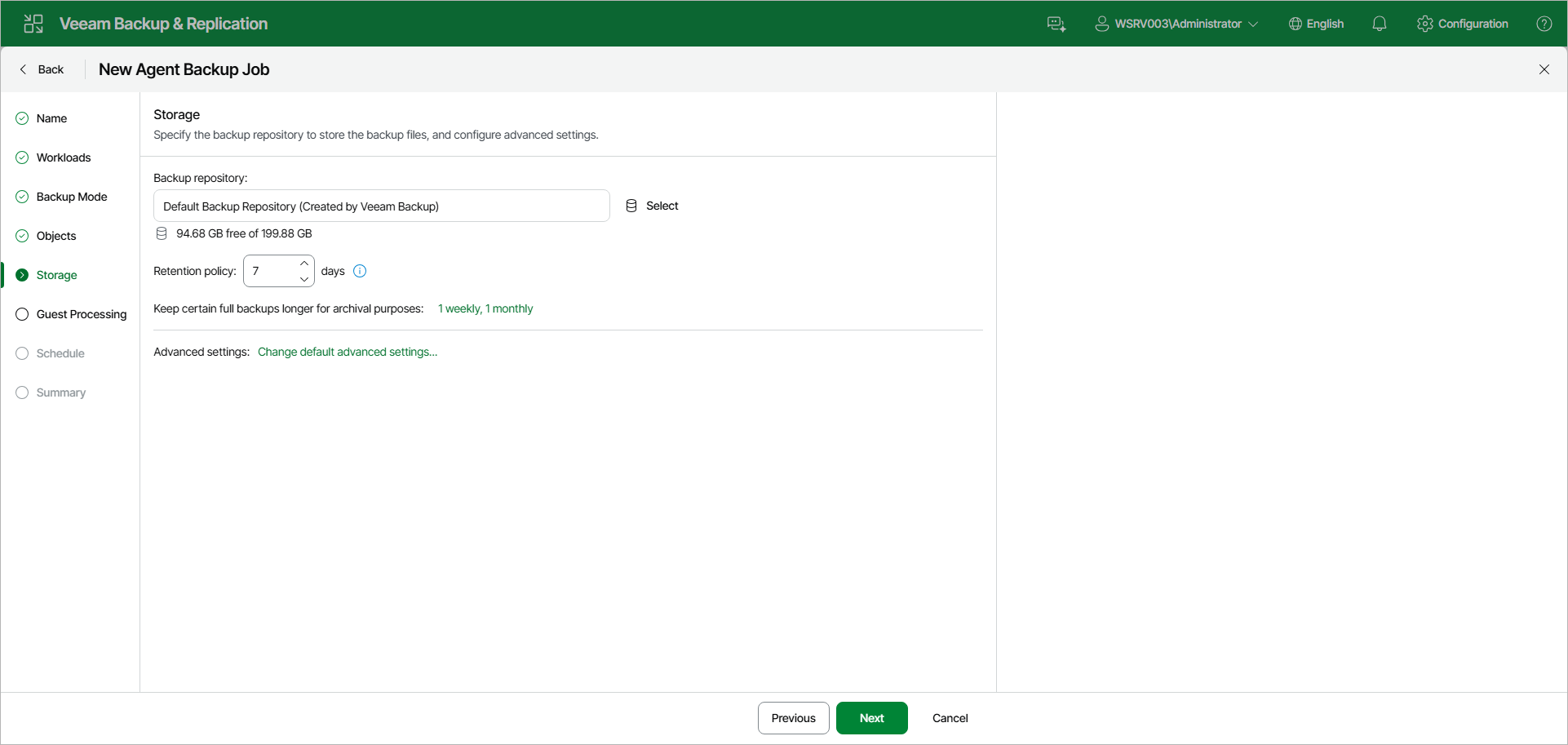
Step 7. Specify Backup Storage Settings
At the Storage step of the wizard, specify the backup repository to store the backup files, and configure advanced settings.
|
NOTE |
|
Secondary storage is not available in the Veeam Backup & Replication web UI. To copy backup files to a secondary location, create a backup copy job in the Veeam Backup & Replication web UI or configure a secondary target for the job in the Veeam Backup & Replication console. To learn more, see Creating Backup Copy Jobs for VMs and Physical Machines Using Web UI and Specify Secondary Target. |
To specify backup storage settings:
- In the Backup repository field, click Select and choose a Veeam backup repository configured on the backup server that will manage the backup job.
When you select a backup repository, Veeam Backup & Replication automatically checks how much free space is available on the backup repository.
- In the Retention policy field, specify the number of days for which you want to store backup files in the target location. To learn more, see Short-Term Retention.
- To use the GFS retention scheme, next to Keep certain full backups longer for archival purposes, click the link and configure the GFS retention settings. To learn more, see Long-Term Retention Policy (GFS).
- By default, the backup job uses pre-configured advanced settings, including a weekly synthetic full backup scheduled for Saturday. To review or update these settings, click Change default advanced settings. To learn more, see Specify Advanced Backup Settings.