Step 3. Specify Restore Points for Authoritative Domain Controllers
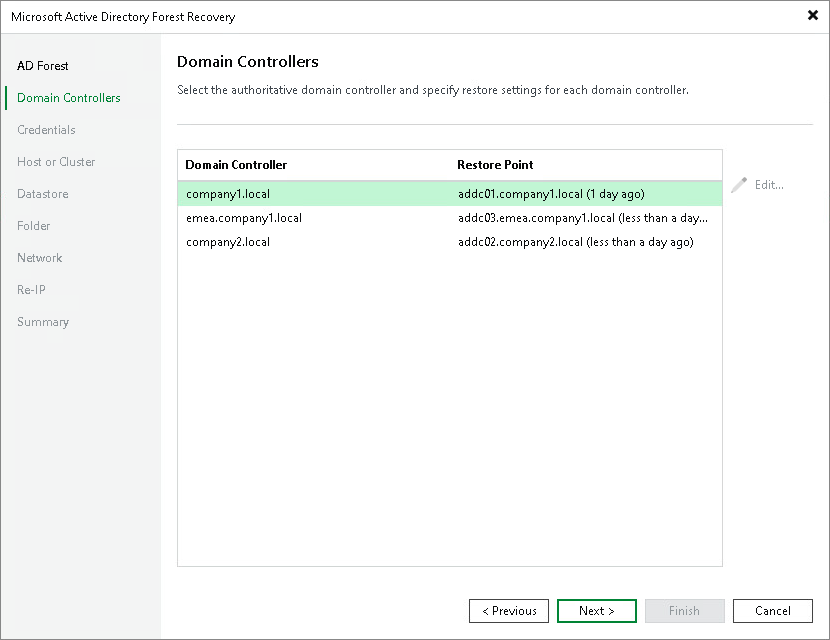
At the Domain Controllers step of the wizard, select a restore point for each domain in the forest.
The table lists all domains detected in the selected forest. For each domain, Veeam Backup & Replication pre-populates the authoritative domain controller and the restore point based on the selected point in time. To change the authoritative domain controller or restore point for a domain:
- Select the domain in the list and click Edit.
- In the domain settings window, select the authoritative domain controller and the restore point to use.
You can select a restore point only for the authoritative domain controllers of the non-root domains. The restore point for the root domain controller was set at the AD Forest step of the wizard, where it defines the forest point in time.
- Click OK.
Note |
The restore points that you select must use a supported Active Directory schema version. The minimum supported version is Windows Server 2016. In addition, the restore point selected for the forest root domain must have a schema version that is greater than or equal to the schema version of every other domain. |