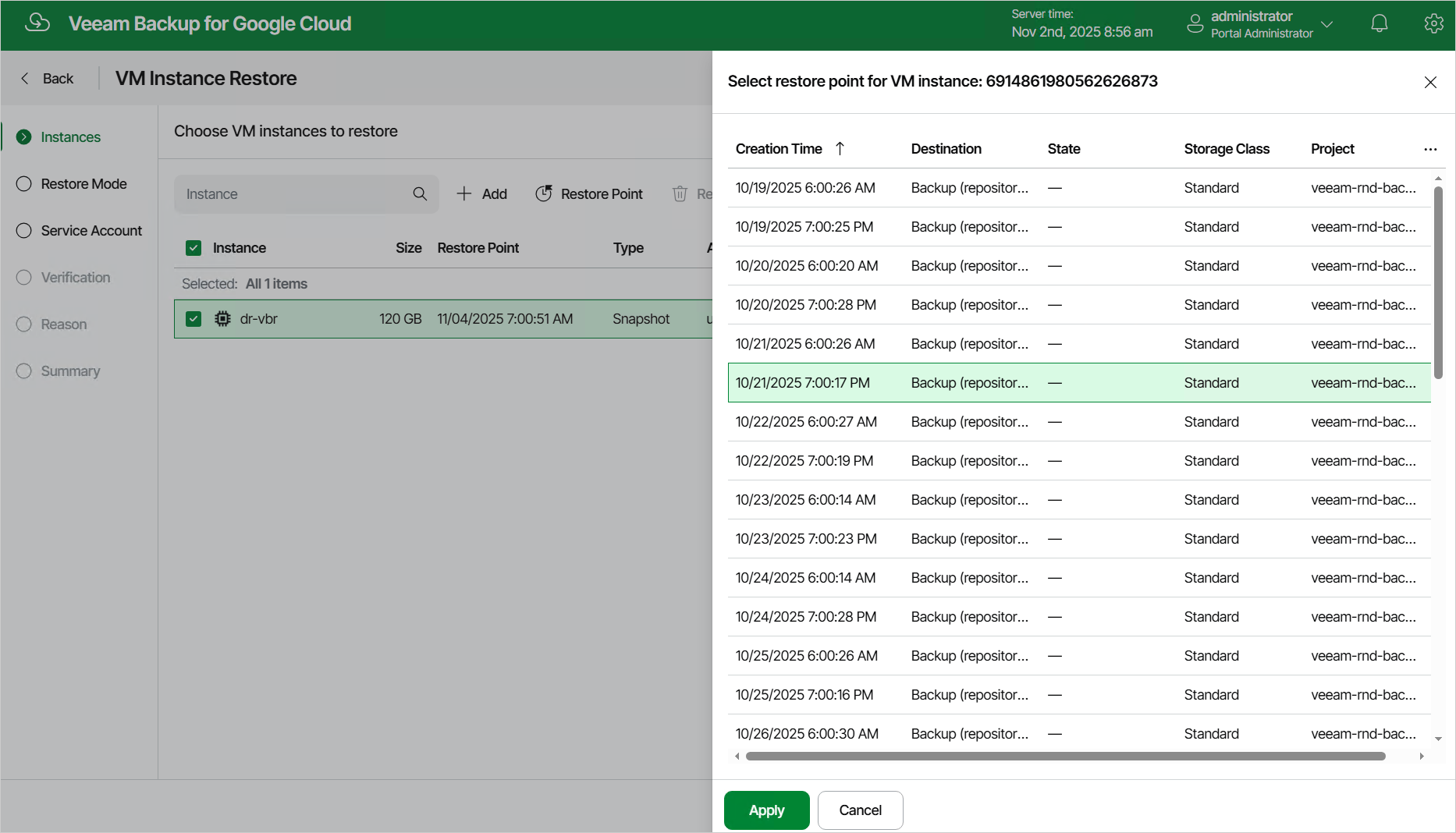
Step 2. Select Restore Point
At the Instances step of the wizard, select a restore point that will be used to restore the selected VM instance. By default, Veeam Plug-In for Google Cloud uses the most recent valid restore point. However, you can restore the VM instance data to an earlier state.
To select a restore point, do the following:
- Select the VM instance and click Restore Point.
- In the Select restore point window, select the necessary restore point and click Apply.
To help you choose a restore point, Veeam Plug-In for Google Cloud provides the following information on each available restore point:
- Creation Time — the date when the restore point was created.
- Destination — the type of the restore point:
- Snapshot — a cloud-native snapshot created by a backup policy.
- Manual Snapshot — a cloud-native snapshot created manually.
- Backup — an image-level backup created by a backup policy.
- State — the result of the latest health check performed for the restore point.
- Storage Class — the storage class of a backup repository where the restore point is stored (applies only to image-level backups).
- Project — a project that manages the protected VM instance.
- Region — a region in which the protected VM instance resides.
- Retention — a retention configured for the backup policy that created the restore point.
|
Note |
|
You cannot restore entire VM instances using restore points in the Incomplete state. You can try running disk restore instead; however, the operation may fail to complete successfully. |