Step 3. Configure Backup Source Settings
At the Virtual Machines step of the wizard, specify the backup scope — resources that Veeam Backup & Replication will back up.
Step 3a. Choose Virtual Machines
Specify VMs that will be included into the backup scope:
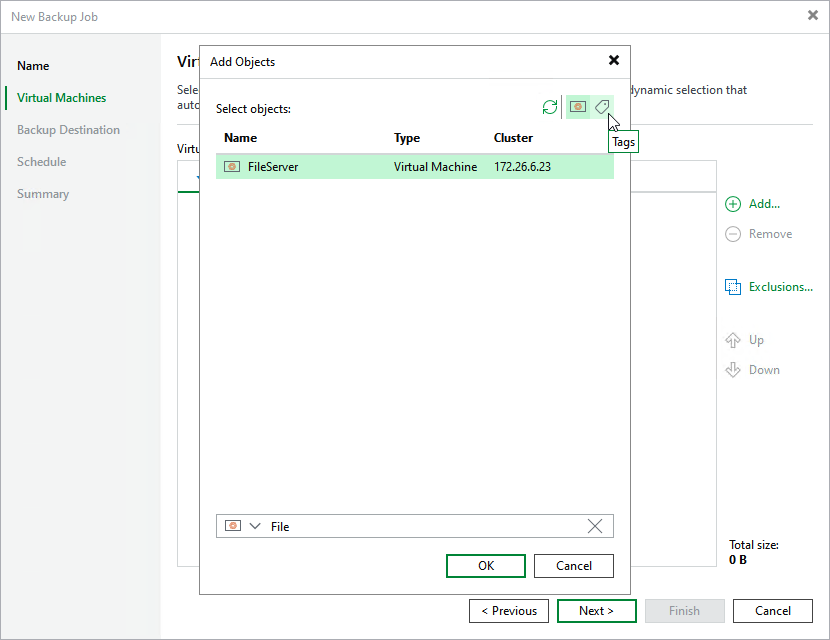
- Click Add.
- In the Add Objects window, choose whether you want to back up all VMs in the cluster, only specific VMs or groups of VMs with tags assigned:
[Applies only if supported by the hypervisor] To view the list of available tags, click the Tag icon on the toolbar at the top right corner of the window. If you add a tag to the backup scope, Veeam Backup & Replication will regularly check for new VMs to which the added tags are assigned and automatically update the backup job settings to include these VMs in the scope.
|
Tip |
|
As an alternative to specifying resources explicitly, you can exclude a number of resources from the backup scope. To do that, click Exclusions and specify the VMs that you do not want to back up — the procedure is the same as described for including resources in the backup scope. Consider that if a resource appears both in the list of included and excluded resources, Veeam Backup & Replication will still not process the resource because the list of excluded resources has a higher priority. |
While running the job, Veeam Backup & Replication processes resources in the order they are added to the backup scope. However, you can change the order, for example, if you add some mission-critical VMs to the job and want them to be processed first. To change the processing order, select a resource and use the Up or Down buttons.
|
Note |
|
Consider the following:
|
Step 3b. Choose Disks
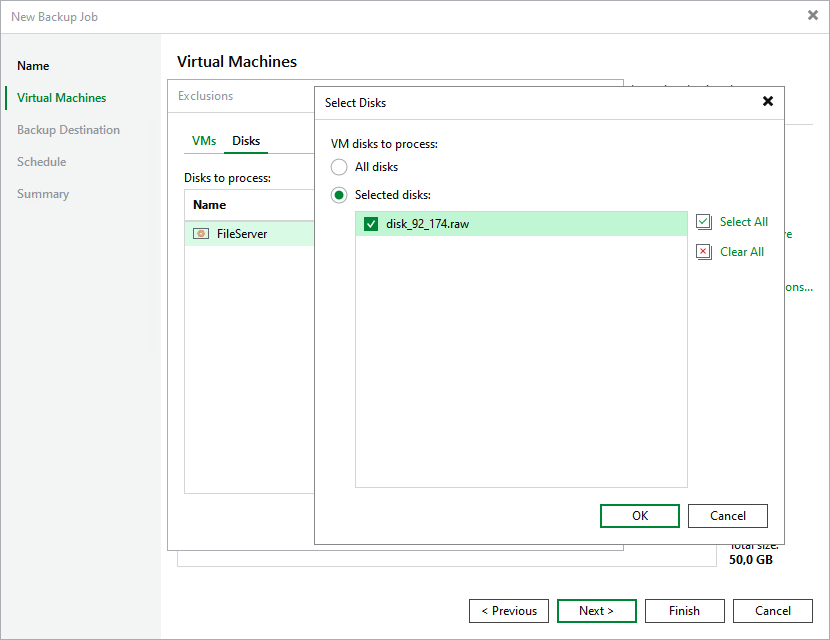
By default, jobs process all disks attached to VMs included into the backup scope. However, you can instruct Veeam Backup & Replication to back up only specific virtual disks related to the selected backup scope:
- Click Exclusions.
- In the Exclusions window, switch to the Disks tab and click Add.
- In the Add Objects window, select a resource that you have added to the backup scope and click OK.
- Back to the Exclusions window, select the resource and click Edit.
- In the Select Disks window, select the Selected Disks option and click Add.
- Select disks that you want to back up.
Disks that you do not select will be excluded from the backup job.