Step 3. Specify AWS Account Settings
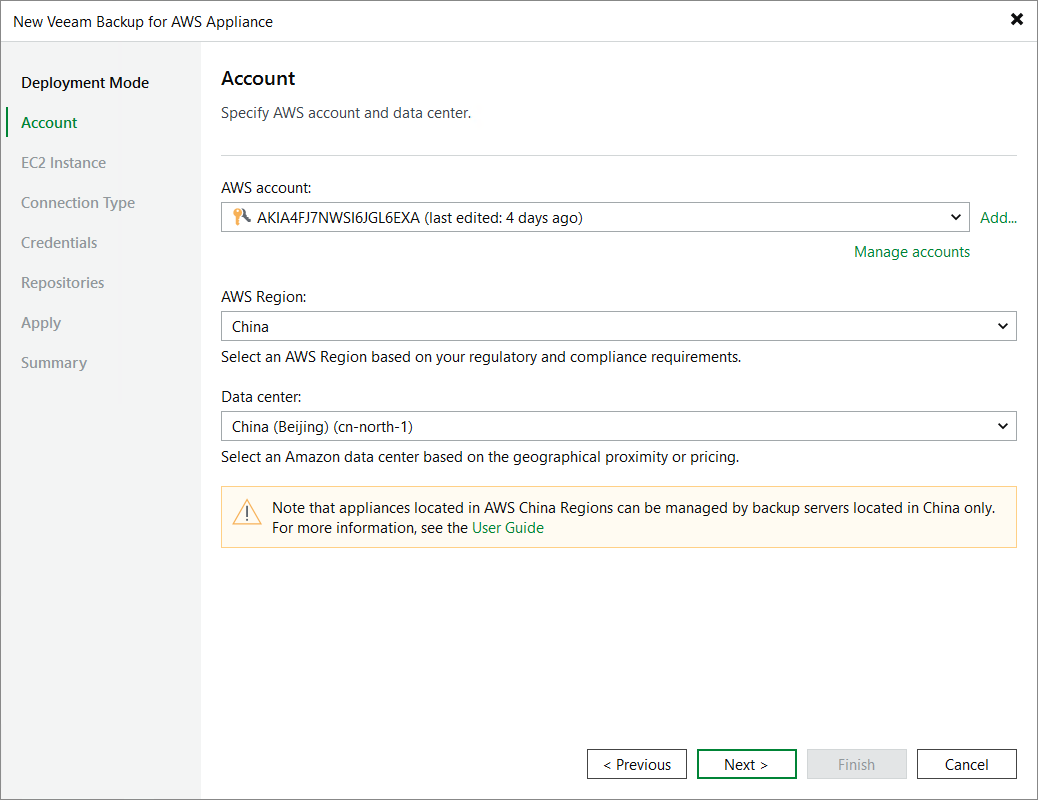
At the Account step of the wizard, do the following:
- From the AWS account drop-down list, select access keys of an IAM user that belongs to an AWS account in which the backup appliance has been deployed. Veeam Backup & Replication will use permissions of the specified IAM user to connect to the backup appliance. For more information on the required permissions, see Plug-in Permissions.
For access keys of an IAM user to be displayed in the AWS account drop-down list, they must be created in AWS and added to the Cloud Credentials Manager as described in section Access Keys for AWS Users. If you have not added the necessary keys to the Cloud Credentials Manager beforehand, you can do it without closing the wizard. To do that, click either the Manage accounts link or the Add button, and specify the access key and secret key in the Credentials window.
- From the AWS Region drop-down list, specify the AWS partition where the backup appliance resides.
- From the Data center drop-down list, select the AWS Region in which the backup appliance resides.
For more information on regions and availability zones, see AWS Documentation.
|
Important |
|