Step 2. Select Restore Point
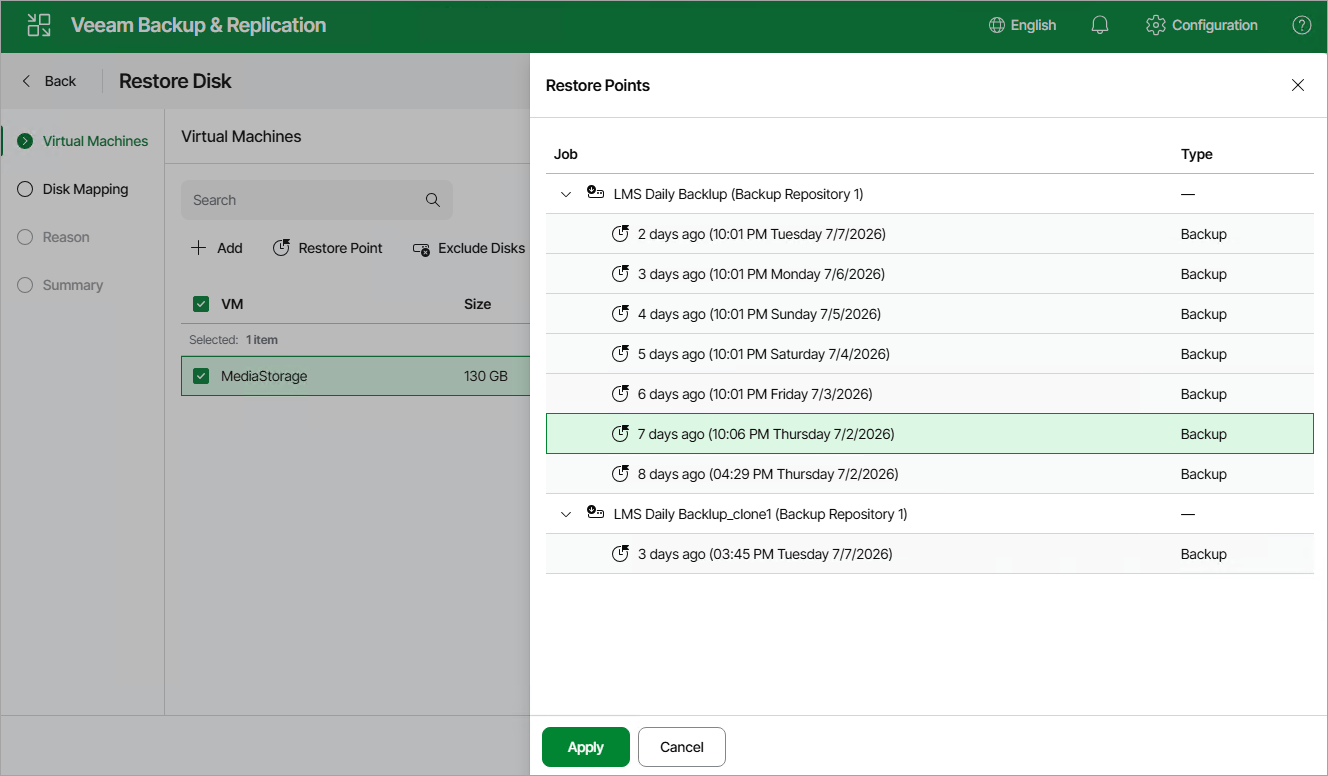
At the Virtual Machines step of the wizard, select a restore point that will be used to restore data. By default, Veeam Plug-In for Nutanix AHV uses the most recent valid restore point. However, you can restore the data to an earlier state.
|
Note |
|
While creating a backup, Veeam Plug-In for Nutanix AHV takes a VM snapshot that is called backup snapshot. Veeam Plug-In for Nutanix AHV stores a recent backup snapshot for each backup job. Restore from a backup snapshot is significantly faster than restore from a backup. |
To select a restore point, do the following:
- Select the VM.
- Click Restore Point.
- In the Restore Points window, select the necessary restore point and click Apply.
To help you choose a restore point, Veeam Plug-In for Nutanix AHV provides the following information on each available restore point:
- Job — the name of the backup job that created the restore point.
- Type — the type of the restore point:
- Backup — an image-level backup created by a backup job.
[Applies to the Prism Central deployment] Only backups are supported for restore to another cluster.
- Snapshot — a snapshot created by a backup job.
|
Tip |
|
By default, Veeam Plug-In for Nutanix AHV restores all disks attached to the selected VMs. If you want to exclude specific disks of a VM from restore, do the following. Select a VM, click Exclude Disks and select the disks to exclude. |