Step 9. Configure Re-IP Rules

At the Re-IP step of the wizard, configure re-IP rules for the restored domain controllers. Re-IP rules reassign IP addresses to restored domain controllers to meet the target site IP addressing scheme.

Important

Consider the following:

  • If you add re-IP rules, the rules must cover all network adapters of the selected domain controllers.
  • If you do not add re-IP rules, the restored domain controllers keep their original IP addresses. In that case, and whenever the production forest is still running, the target networks must be isolated from production. Otherwise, Active Directory replication issues and FSMO, Kerberos and SPN conflicts may occur. For more information, see Network Isolation.

The table lists the configured rules with the source IP address, target IP address and description. The following sections describe how to add and manage IPv4 and IPv6 re-IP rules.

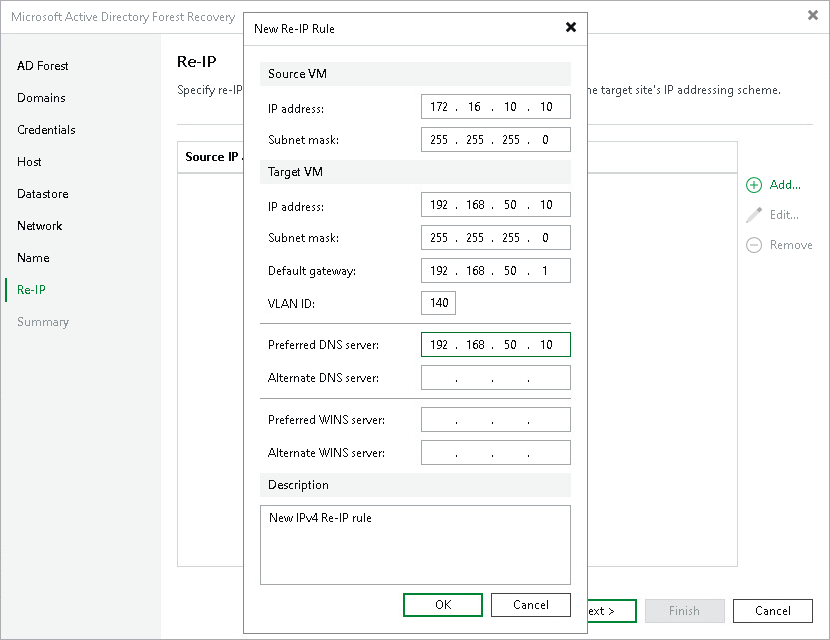
Adding IPv4 Re-IP Rule

To add an IPv4 re-IP rule, do the following:

  1. Click Add and select IPv4 Rule. This will open the Edit Re-IP Rule for IPv4 window.
  2. In the Source VM section, specify the IPv4 address and the subnet mask of the domain controller in the source environment.
  3. In the Target VM section, specify the IPv4 address, subnet mask and default gateway for the domain controller in the target environment.
  4. [Optional] Specify the preferred and alternate DNS and WINS server addresses.
  5. To place a restored domain controller in a specific VLAN, select the VLAN ID check box and enter a VLAN ID from 1 to 4094.
  6. In the Description field, enter a description for the re-IP rule.
  7. Click OK.

Step 9. Configure Re-IP Rules

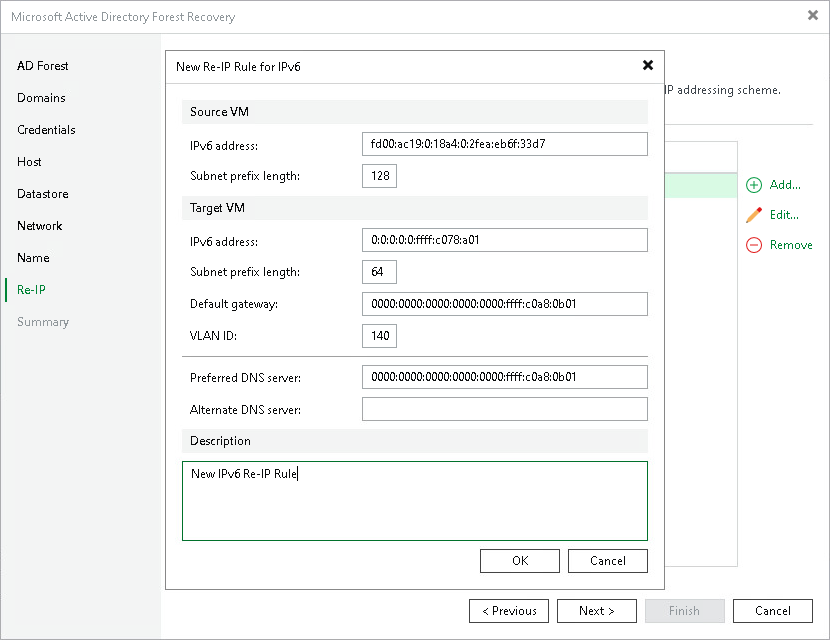
Adding IPv6 Re-IP Rule

To add an IPv6 re-IP rule, do the following:

  1. Click Add and select IPv6 Rule. This will open the Edit Re-IP Rule for IPv6 window.
  2. In the Source VM section, specify the IPv6 address and the subnet prefix length of the domain controller in the source environment.
  3. In the Target VM section, specify the IPv6 address, subnet prefix length and default gateway for the domain controller in the target environment.
  4. [Optional] Specify the preferred and alternate DNS server addresses.
  5. To place a restored domain controller in a specific VLAN, select the VLAN ID check box and enter a VLAN ID from 1 to 4094.
  6. In the Description field, enter a description for the re-IP rule.
  7. Click OK.

Step 9. Configure Re-IP Rules

Managing Re-IP Rules

Once you create re-IP rules, you can edit or remove them.

  • To edit an existing rule, select it and click Edit — the Re-IP Rule window opens.
  • To remove one or more rules, select them and click Remove. To select multiple rules at once, press and hold [Ctrl] or [Shift].

Page updated 2026-07-24

Page content applies to build 13.1.0.411