Viewing Scan Results Using Console
The results of Veeam Threat Hunter, 3rd party antivirus software, and YARA scans are available in the restore session statistics.
To view restore session statistics, do one of the following:
- Open the Home view. In the inventory pane, select Last 24 hours. In the working area, double-click the necessary restore session. Alternatively, you can select the session and click Statistics on the ribbon or right-click the session and select Statistics.
- Open the History view. In the inventory pane, select Restore. In the working area, double-click the necessary restore session. Alternatively, you can select the session and click Statistics on the ribbon or right-click the session and select Statistics.
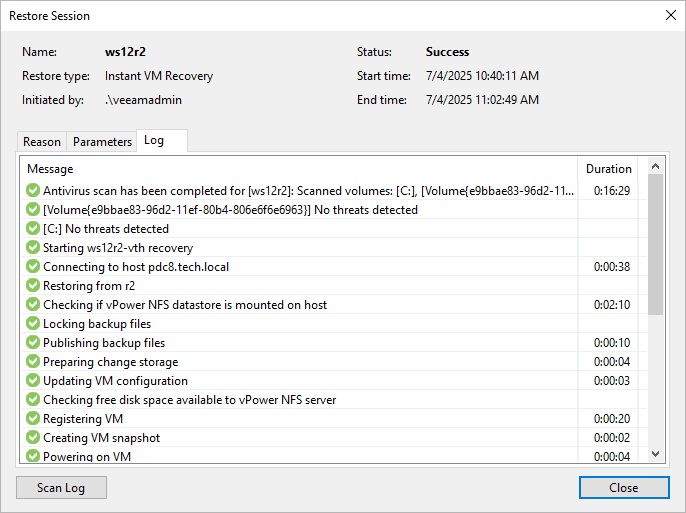
To view the detailed log of the scan, click Scan Log. Veeam Backup & Replication will display the most recent logs in a file of 1 MB in size.
Full logs of the scan are stored on the mount server in the C:\ProgramData\Veeam\Backup\FLRSessions\Windows\FLR__<machinename>_\Antivirus folder (for Veeam Backup & Replication on Microsoft Windows) or in the /var/log/VeeamBackup/FLRSessions/OtherOS/FLR_<machinename>/Antivirus/ directory (for Veeam Backup & Replication on Linux).