Performing Instance Restore
You can recover corrupted EC2 instances in the backup appliance Web UI only. However, you can launch the EC2 Restore wizard directly from the Veeam Backup & Replication console to start the restore operation:
- In the Veeam Backup & Replication console, open the Home view.
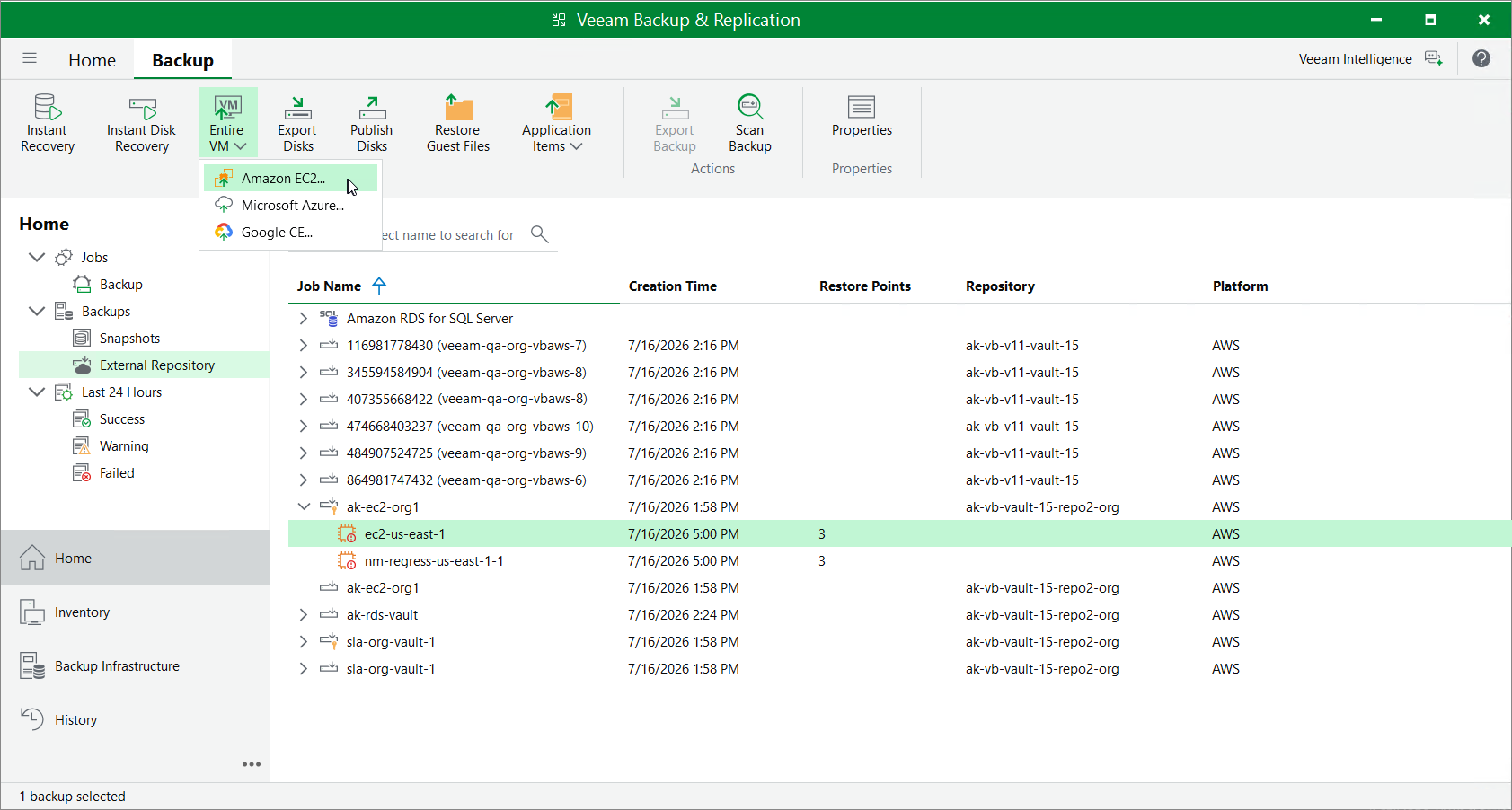
- Navigate to Backups > Snapshots if you want to restore from a cloud-native snapshot, or to Backups > External Repository if you want to restore from an image-level backup.
- [Applies only if you restore from a cloud-native snapshot] Expand the backup policy that protects an EC2 instance that you want to recover, select the necessary instance and click Amazon EC2 on the ribbon.
Alternatively, you can right-click the selected instance and click Restore to Amazon EC2.
- [Applies only if you restore from an image-level backup] Expand the backup policy that protects an EC2 instance that you want to recover, select the necessary instance and click Entire VM > Amazon EC2 on the ribbon.
Alternatively, you can right-click the selected instance and click Entire VM > Amazon EC2.
Veeam Backup & Replication will open the EC2 Restore wizard in a web browser. Complete the wizard as described in section EC2 Restore Using Web UI.