Installing Plug-In on Microsoft Windows
Veeam Plug-In for IBM Db2 is an additional component of Veeam Backup & Replication. The installation package of the plug-in is included in the Veeam Backup & Replication installation ISO file and available for download from veeam.com.
You can install Veeam Plug-In for IBM Db2 on Windows machines using a wizard or in an unattended mode:
- Installing Veeam Plug-In using an installation wizard
- Installing Veeam Plug-In in an unattended mode
Installing Plug-In Using an Installation Wizard
To install Veeam Plug-In for IBM Db2 on a Windows machine, perform the following steps:
- Export installation packages to the machine with a database that you plan to protect. You can do it in the following ways:
Using the Veeam Backup & Replication installation image
- Mount the Veeam Backup & Replication installation image.
You can download the latest version of the Veeam Backup & Replication installation image from this Veeam webpage.
- In the installation disk folder, go to \Plugins\IBM Db2\Windows.
- Upload the VeeamPluginforDB2.exe file to the IBM Db2 machine, then run the uploaded file to launch the installation wizard.
Using veeam.com
- Download the setup archive for Veeam Plug-In for IBM Db2 from this Veeam webpage.
- Open the setup archive, in the \VeeamPluginforDB2-13.1.0.411\Windows folder, find the VeeamPluginforDB2.exe file.
- Upload the VeeamPluginforDB2.exe file to the IBM Db2 machine, then run the uploaded file to launch the installation wizard.
- Install Veeam Plug-In. To do this, run the following commands:
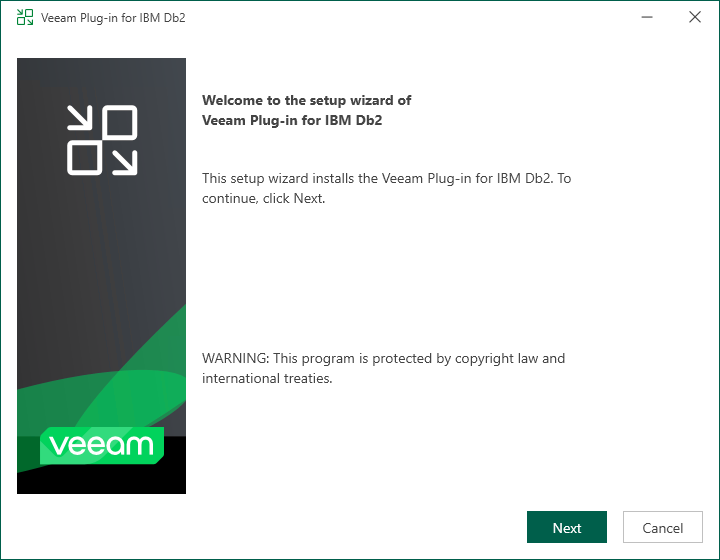
- At the welcome screen of the installation wizard, click Next.
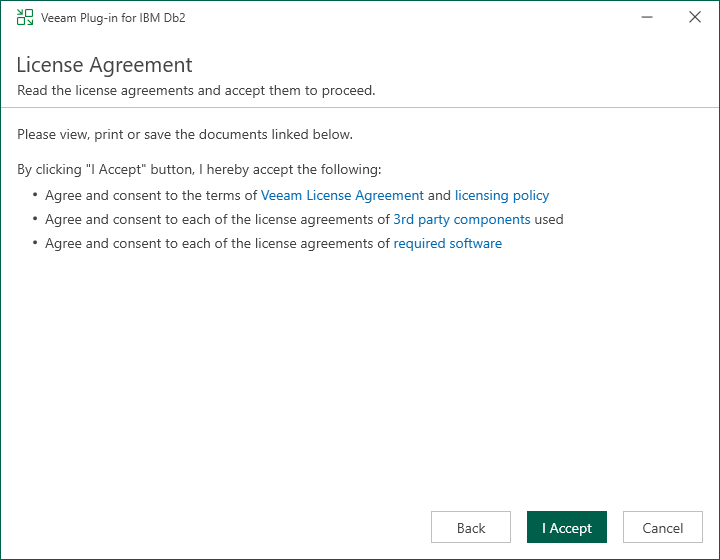
- At the License Agreement step of the wizard, accept the terms of license agreements and click I Accept.
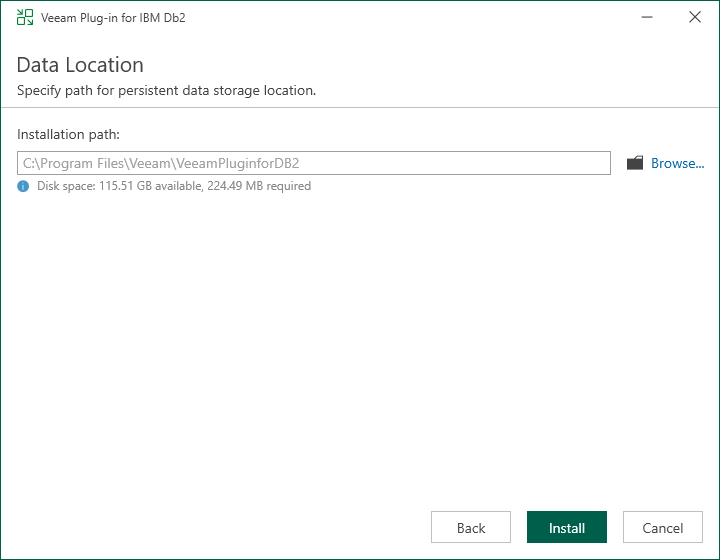
- At the Data Location step of the wizard, specify the installation path for Veeam Plug-In and click Install.
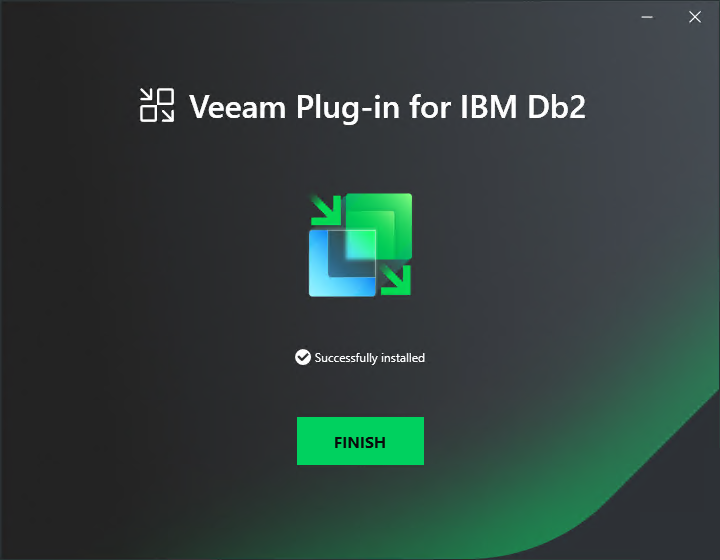
- Wait for the installation process to complete and click Finish to exit the wizard.
Once Veeam Plug-In is installed, you can configure the plug-in settings. For details, see Configuring Plug-In on Microsoft Windows.
Installing Plug-In in Unattended Mode
To install Veeam Plug-In for IBM Db2 on a Windows machine in the unattended mode, do the following:
- Export installation packages to the machine with a database that you plan to protect. You can do it in the following ways:
Using the Veeam Backup & Replication installation image
- Mount the Veeam Backup & Replication installation image.
You can download the latest version of the Veeam Backup & Replication installation image from this Veeam webpage.
- In the installation image folder, go to \Plugins\IBM Db2\Windows.
- Upload the VeeamPluginforDB2.exe file to the IBM Db2 machine.
Using veeam.com
- Download the setup archive for Veeam Plug-In for IBM Db2 from this Veeam webpage.
- Open the setup archive, in the \VeeamPluginforDB2-13.1.0.411\Windows folder, find the VeeamPluginforDB2.exe file.
- Upload the VeeamPluginforDB2.exe file to the IBM Db2 machine.
- Install Veeam Plug-In for IBM Db2 on a Windows machine in the unattended mode using the command line. Go to the folder where the VeeamPluginforDB2.exe file resides and run the following command:
<path_to_exe>\VeeamPluginforDB2.exe /silent /accepteula /acceptthirdpartylicenses /acceptlicensingpolicy /acceptrequiredsoftware |
where <path_to_exe> is the path to the Veeam Plug-In for IBM Db2 installation file.
Parameter |
Description |
|---|---|
/silent |
Enables the silent mode. |
/accepteula |
Accepts EULA terms. |
/acceptthirdpartylicenses |
Accepts terms of third-party licenses. |
/acceptrequiredsoftware |
Enables installation of the required software (Microsoft .NET Framework 4.6) and accepts terms of its license. |
/acceptlicensingpolicy |
Accepts terms of the Veeam licensing policy. |
Veeam Plug-In for IBM Db2 uses the following codes to report about the installation results:
- 1000 — Veeam Plug-In has been successfully installed.
- 1001 — prerequisite components required for Veeam Plug-In have been installed on the machine. Veeam Plug-In has not been installed. The machine needs to be rebooted.
- 1002 — Veeam Plug-In installation has failed.
- 1101 — Veeam Plug-In has been installed. The machine needs to be rebooted.
Once Veeam Plug-In is installed, you can configure the plug-in settings. For details, see Configuring Plug-In on Microsoft Windows.