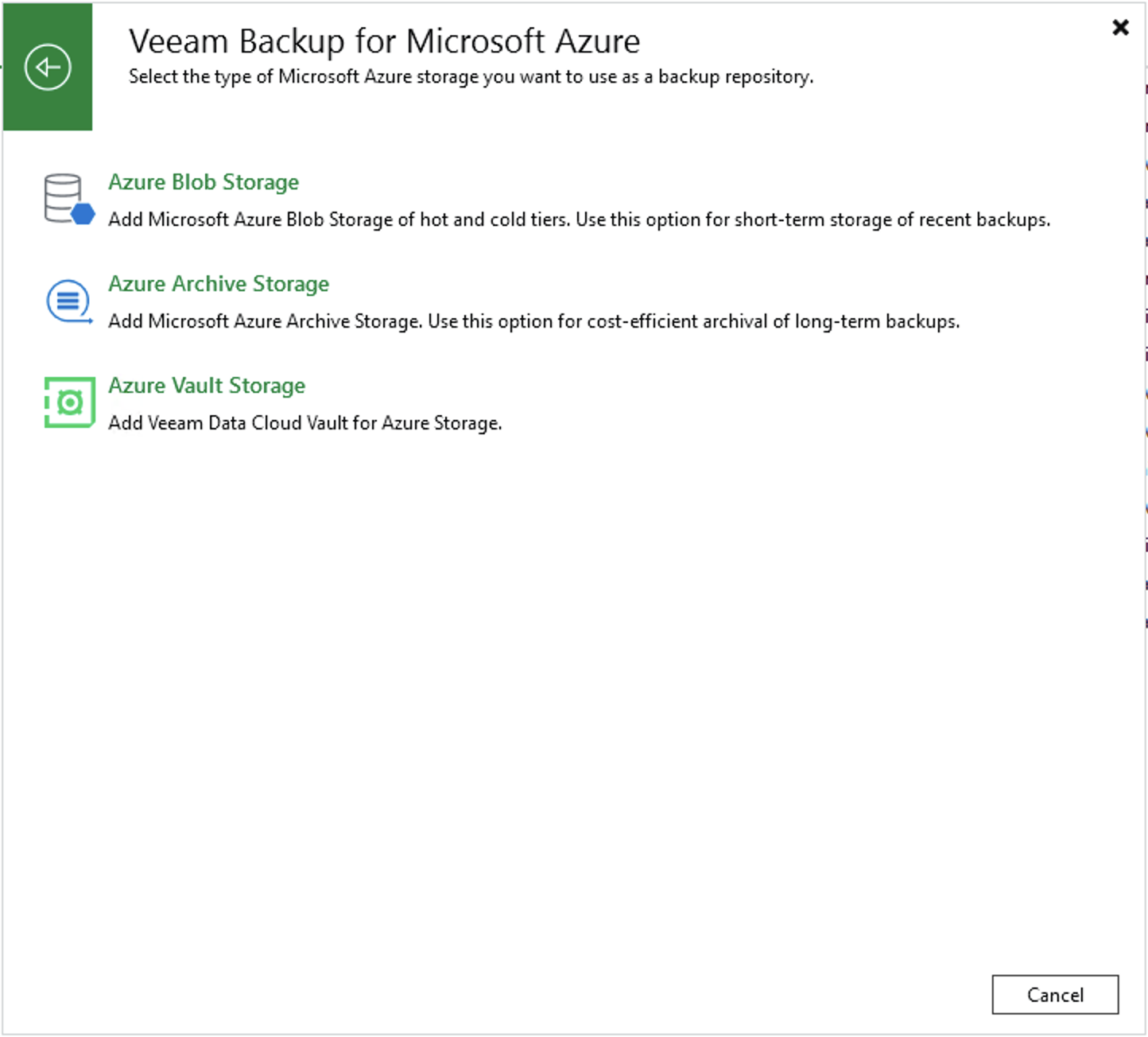
Step 1. Launch Add External Repository Wizard
To launch the Add External Repository wizard, do the following:
- In the Veeam Backup & Replication console, open the Backup Infrastructure view.
- Navigate to External Repositories and click Add Repository on the ribbon.
Alternatively, you can right-click the External Repositories node and select Add.
- In the Add External Repository window, click Veeam Backup for Microsoft Azure and select the Azure Vault Storage option.