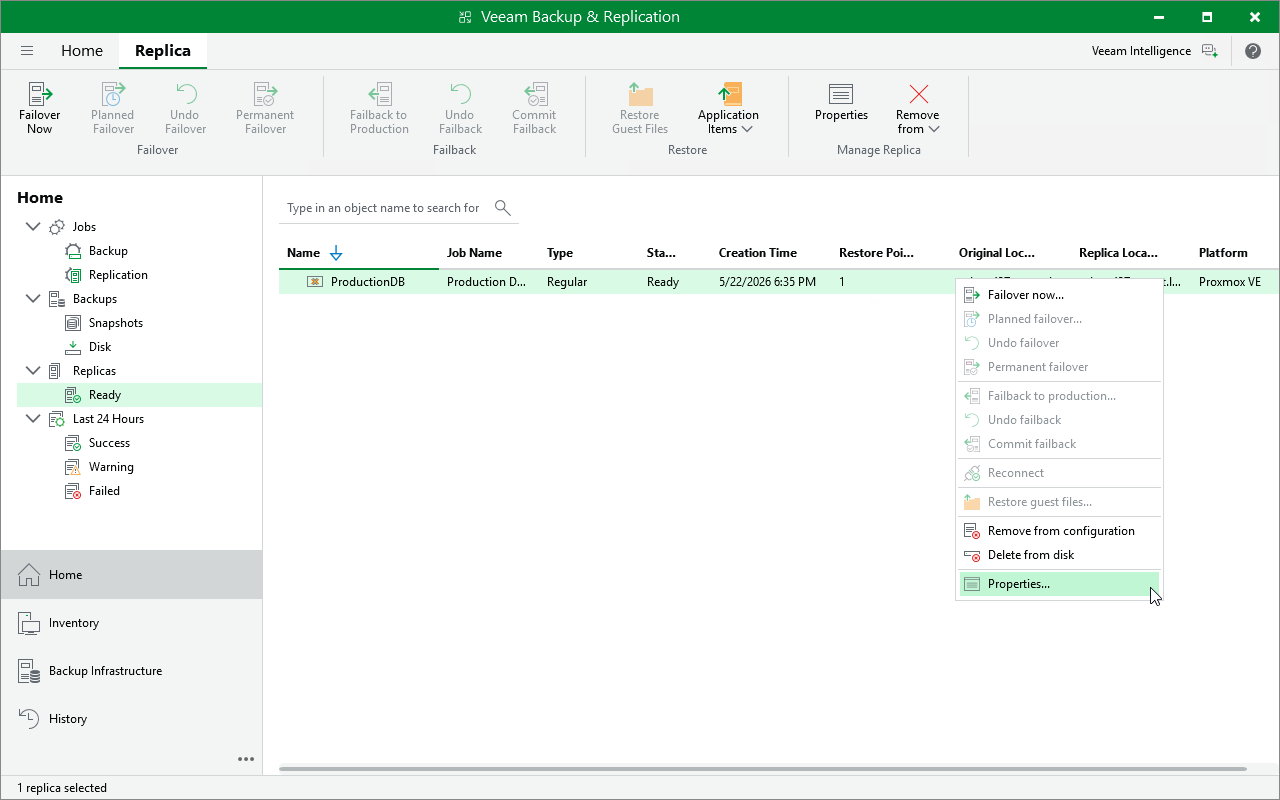
Viewing Replica Properties
After a replication job successfully creates a VM replica according to the specified schedule, the replica is displayed under the Replica node in the Home view of the Veeam Backup & Replication console. Each replica and the collection of restore points created for this replica is represented with a set of properties, such as:
- Virtual machine — the name of a protected VM.
- Original location — the host where the original VM resides.
- Date — the date when the restore point was created.
- Status — the result of the most recent malware scan performed for the restore point.
|
Tip |
|
If a restore point is marked as Infected but you know that this point is clean, you can change its status manually. To do that, select the restore point and click Malware > Mark as clean. To learn how to manage infected restore points, see Managing Malware Status. |
To view replica properties, do the following:
- Open the Home view.
- In the inventory pane, select Replica.
- In the working area, right-click the necessary replica and select Properties.
Alternatively, select the replica and click Properties on the ribbon.