Configuring Syslog
Syslog forwards system logs from the Veeam Software Appliance and Veeam Infrastructure Appliances to a remote syslog server. You can configure Syslog in the Veeam Backup & Replication web UI.
This forwards operating system and appliance service logs only. To forward Veeam Backup & Replication job success and failure notifications, configure event forwarding to a syslog server instead.
Veeam Backup & Replication then distributes the settings to all Veeam Appliances in your backup infrastructure.
You can forward logs to the syslog server that Veeam Backup & Replication already uses for event forwarding. You can also specify a separate server. Syslog uses the same transport protocols as Veeam Backup & Replication event forwarding.
Enabling Syslog Event Forwarding
To enable Syslog event forwarding:
- Click Configuration in the top bar.
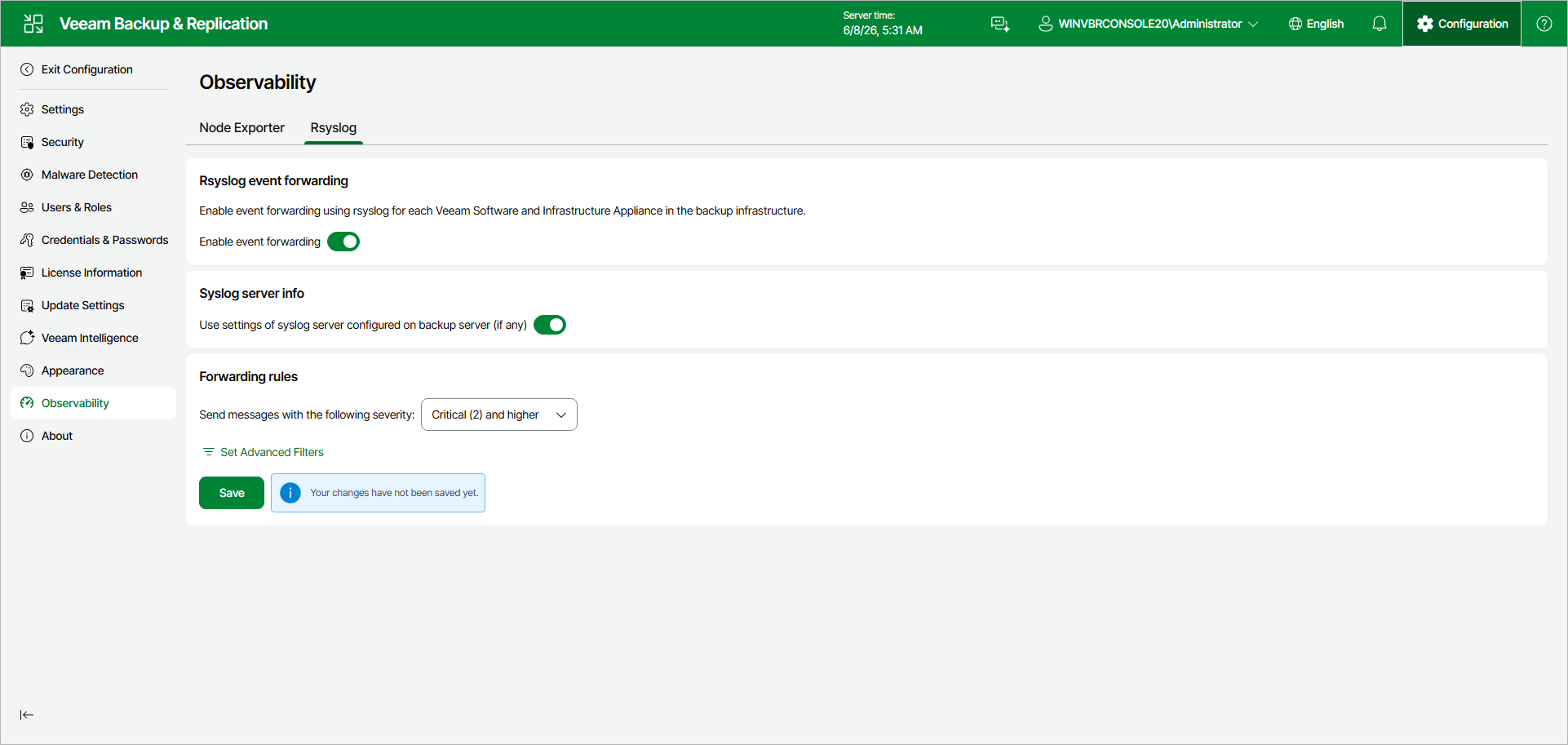
- In the management pane, click Observability > Syslog.
- Set the Enable event forwarding toggle to On.
- Then, do one of the following:
- To use a syslog server that is already used for Veeam Backup & Replication event forwarding, set the Use settings of syslog server configured on backup server (if any) toggle to On.
- To configure a new syslog server:
- Specify the server that you want to forward logs to. You can use IPv4, IPv6, or the DNS name of the server.
- Specify the port for forwarding the logs.
- Select a transport protocol.
|
Note |
|
Audit logs can only be forwarded over TLS. Additionally, you must set the forwarded event severity level to Informational (6) and higher or Debug (7) and higher. |
|
Important |
|
If you use TLS transport with a custom certificate, you must manually upload the certificate to all Veeam Software Appliance and Veeam Infrastructure Appliance hosts. |
- In the Forwarding Rules section, select an event severity level. Only events with this severity or higher are forwarded.
|
Tip |
|
Lower numbers indicate higher levels of severity. |
- Click Save.
Configuring Advanced Filtering
After you enable Syslog event forwarding, you can stop specific programs and services from sending events to the syslog server. You can exclude a program completely, or forward only events of certain severity levels.
Adding Advanced Filter
To add a new event filtering rule, do the following:
- Click Configuration in the top bar.
- In the management pane, click Observability > Syslog.
- In the Forwarding Rules section, click Set Advanced Filters.
- Click Add.
- Specify an application name.
|
Important |
|
Application names are case-sensitive. |
- Select the event severity levels you do not want to forward.
- Click OK.
 List of Application Names
|
Editing Advanced Filter
To edit an existing event filtering rule, do the following:
- Click Configuration in the top bar.
- In the management pane, click Observability > Syslog.
- In the Forwarding Rules section, click Set Advanced Filters.
- Select an event filtering rule.
- Click Edit.
- Make any necessary changes to the application name and filtered severity levels.
- Click OK.
Removing Advanced Filter
To remove an existing event filtering rule, do the following:
- Click Configuration in the top bar.
- In the management pane, click Observability > Syslog.
- In the Forwarding Rules section, click Set Advanced Filters.
- Select an event filtering rule.
- Click Remove.
Importing and Exporting Advanced Filters
You can export and import filtering configurations to reuse them across multiple Veeam Backup & Replication servers.
To export a filtering configuration, do the following:
- Click Configuration in the top bar.
- In the management pane, click Observability > Syslog.
- In the Forwarding Rules section, click Set Advanced Filters.
- Open the Manage drop-down menu and select Export.
To import a filtering configuration, do the following:
- Click Configuration in the top bar.
- In the management pane, click Observability > Syslog.
- In the Forwarding Rules section, click Set Advanced Filters.
- Open the Manage drop-down menu and select Import.
- Select an exported filtering configuration .xml file.
|
Tip |
|
If you disable Syslog event forwarding, it is recommended to export your advanced filter configuration. If you enable the feature again later, you can re-import your configuration. If you do not do this, you will need to reconfigure your filters manually. |