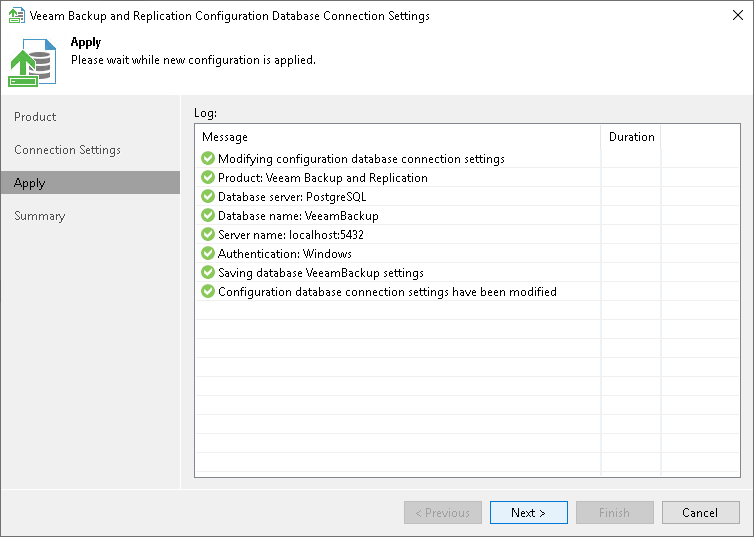
Step 5. Apply Connection Settings
Before proceeding, the utility validates the specified settings to make sure that the user account has enough privileges to access the database.
- If you have selected the Microsoft Windows authentication method, the utility will check the privileges of the current user account (that is, the account under which the utility is running) to connect to specified Microsoft SQL Server.
- If you have selected the Microsoft SQL Server or the PostgreSQL native authentication method, the utility will check the privileges of the account you have specified.
To ensure that these accounts (as well as the account under which the Veeam Backup Service is running) have sufficient privileges for database access, you can contact your database administrator. Refer to the list of required permissions for Veeam Backup & Replication for detailed information.
At the Apply step of the wizard, Veeam Backup & Replication deploys the database and saves the new connection settings. The Log list shows the progress.
Wait for the operation to complete and click Next to proceed to the Summary step of the wizard. After the settings are applied, Veeam Backup & Replication starts the services.