Shared Folder Settings
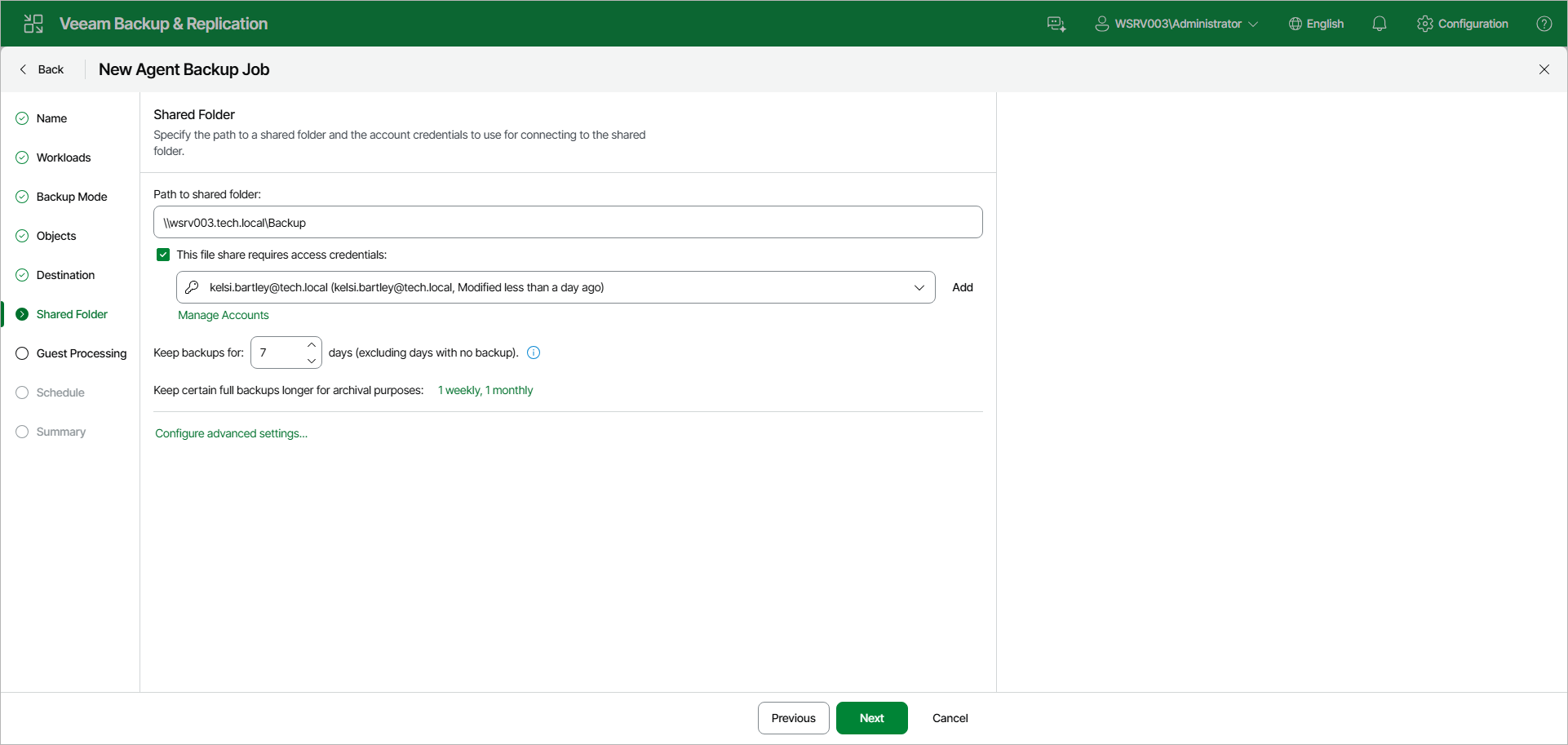
At the Shared Folder step of the wizard, specify shared folder settings:
- In the Path to shared folder field, type a UNC name of the SMB (CIFS) network shared folder in which you want to store backups. Keep in mind that the UNC name always starts with two back slashes (\\).
- If the SMB network shared folder requires authentication, select the This file share requires access credentials check box and select from the list a user account that has access permissions on this shared folder. If you have not set up credentials beforehand, click the Manage Accounts link or click Add on the right to add credentials.
The user name can be specified in the following formats:
- DNS.DOMAIN.NAME\USERNAME
- USERNAME@DNS.DOMAIN.NAME
- HOSTNAME\USERNAME — if you use Veeam Backup & Replication on Microsoft Windows
- DOMAIN\USERNAME — if you use Veeam Backup & Replication on Microsoft Windows
If you do not select the This file share requires access credentials check box, Veeam Agent for Microsoft Windows will connect to the shared folder using the NT AUTHORITY\SYSTEM account of the computer where the product is installed. You can use this scenario if the Veeam Agent computer is joined to the Active Directory domain. In this case, you can simply grant Full Control access on the shared folder and underlying file system to the computer account (DOMAIN\COMPUTERNAME$).
- In the Keep backups for field, specify the number of days for which you want to store backup files in the target location. After this period is over, Veeam Agent will remove from the backup chain any restore points that are older than the specified retention period. By default, Veeam Agent keeps backup files for 7 days, excluding days with no backup. To learn more, see Short-Term Retention Policy.
- To use the GFS (Grandfather-Father-Son) retention scheme, next to Keep certain full backups longer for archival purposes, click the current setting summary. In the Configure GFS window, specify how weekly, monthly and yearly full backups must be retained. To learn more, see Long-Term Retention Policy (GFS).
Keep in mind that to use the GFS retention policy, you must set Veeam Agent to create full backups. To learn more, see Backup Settings.
- Click Configure advanced settings to specify advanced settings for the backup policy. To learn more, see Specify Advanced Backup Settings.