Managing Malware Exclusions Using Console
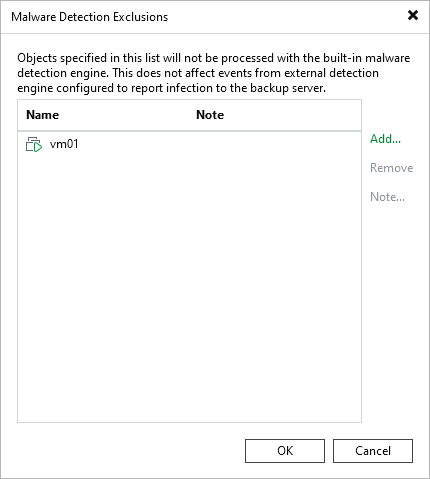
To exclude specific machines from the malware detection scan, do the following in the Veeam Backup & Replication console:
- Open the Malware Detection Exclusions window by doing one of the following:
- From the main menu, select Global Exclusions > Malware Exclusions.
- Open the Inventory view, select the Malware Detection node, and click Exclusions on the ribbon.
- Click Add and select VMware vSphere VMs, Hyper-V VMs, or Physical and cloud machines.
- Select the object from the list and click Add.
- Click Note to provide a description for future reference.
- Click OK.
You can also add the machine to the exclusions list when you mark it as clean. For more information, see Managing Malware Status.
To turn individual detection engines on or off and exclude specific paths per machine, click Manage advanced settings in the Web UI. For more information, see Managing Malware Exclusions Using Web UI.
|
Note |
Malware exclusions are applied only to file system activity analysis and the inline scan. They do not affect scans using Veeam Threat Hunter, 3rd party antivirus software, or YARA. |