Step 6. Specify Backup Scope Settings
The Objects step of the wizard is available if you have chosen the Custom scope mode at the Backup Mode step of the wizard.
At this step of the wizard, you must specify the backup scope — define what directories with files you want to include in the backup. The specified backup scope settings will apply to all computers that are added to the backup policy. If a specified directory does not exist on one or more computers in the policy, the policy will skip such directory on those computers and back up existing ones.
To specify directories to back up:
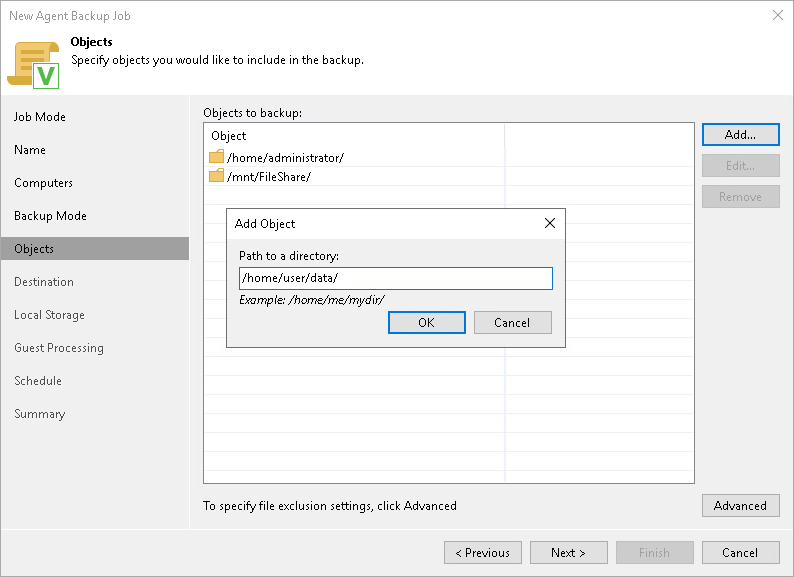
- In the Choose directories to backup field, click Add.
- In the Add Object window, type the path to a directory that you want to back up, for example, /home/user01, and click OK.
- Repeat steps 1–2 for all directories that you want to back up.
|
TIP |
|
If you want to back up the root directory and specify / in the Path to a directory field, Veeam Agent does not automatically include remote mount points in the backup scope. To include remote mount points, you need to specify paths to these mount points manually. For example, you have a file system mounted to the /Library/Media directory. If you add / as an object to the backup scope, Veeam Agent will not back up the mounted file system. To back up the root directory and the mounted file system, add the following objects to the backup scope:
|
Configuring Filters
To include or exclude files of a specific type in/from the file-level backup, you can configure filters.
To configure a filter:
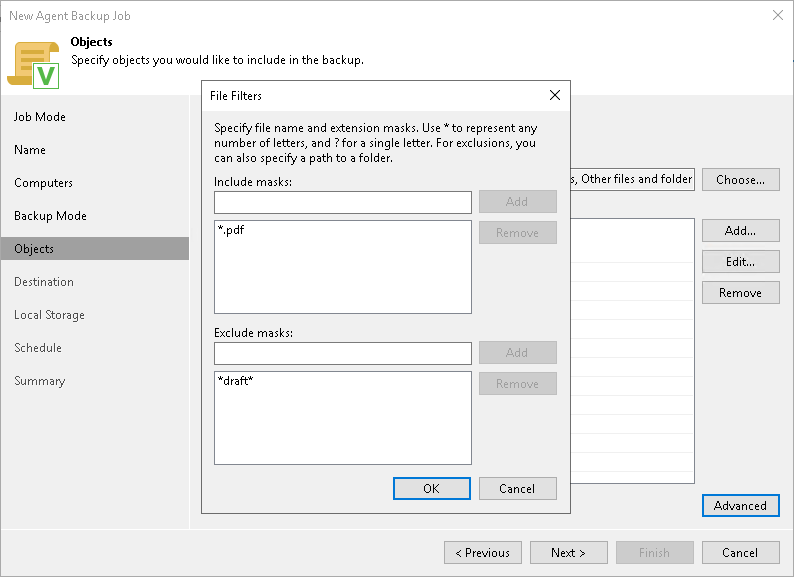
- At the Objects step of the wizard, click Advanced.
- Specify what files you want to back up:
- In the Include masks field, you can specify file names and masks for files or file types that you want to back up — for example, Report.pdf or *filename*. Veeam Agent will create a backup only for selected files. Other files will not be backed up.
- In the Exclude masks field, you can specify paths to directories, as well as names and masks for files or file types, you do not want to back up — for example, /home/user01, OldReports.tar.gz or *.odt. Veeam Agent will back up all files except files of the specified type.
|
NOTE |
|
Consider the following when excluding directories:
|
- Click Add.
- Repeat steps 2–3 for each mask that you want to add.
You can use include and exclude masks together. If include and exclude entries overlap, Veeam Agent resolves them as follows:
- If the same directory is specified in both the include and exclude scope, the directory is included in the backup. For example, if /home is added to both scopes, Veeam Agent includes /home in the backup.
- If a file matches both an include mask and an exclude mask, the exclude mask is applied to the results of the include mask. Veeam Agent first builds a list of files that match the include mask, and then removes from this list the files that also match the exclude mask.
For example, if you specify the following masks:
- Include mask: *.pdf
- Exclude mask: *draft*
Veeam Agent includes in the backup all PDF files whose names do not contain draft.