Scanning Backups Using Web UI
You can run a Scan Backup session from the Malware Detection view. For more information about Scan Backup and its scan engines, see Scan Backup.
|
Important |
|
Consider the following:
|
To run a Scan Backup session, do the following:
- In the left navigation pane, click Malware Detection.
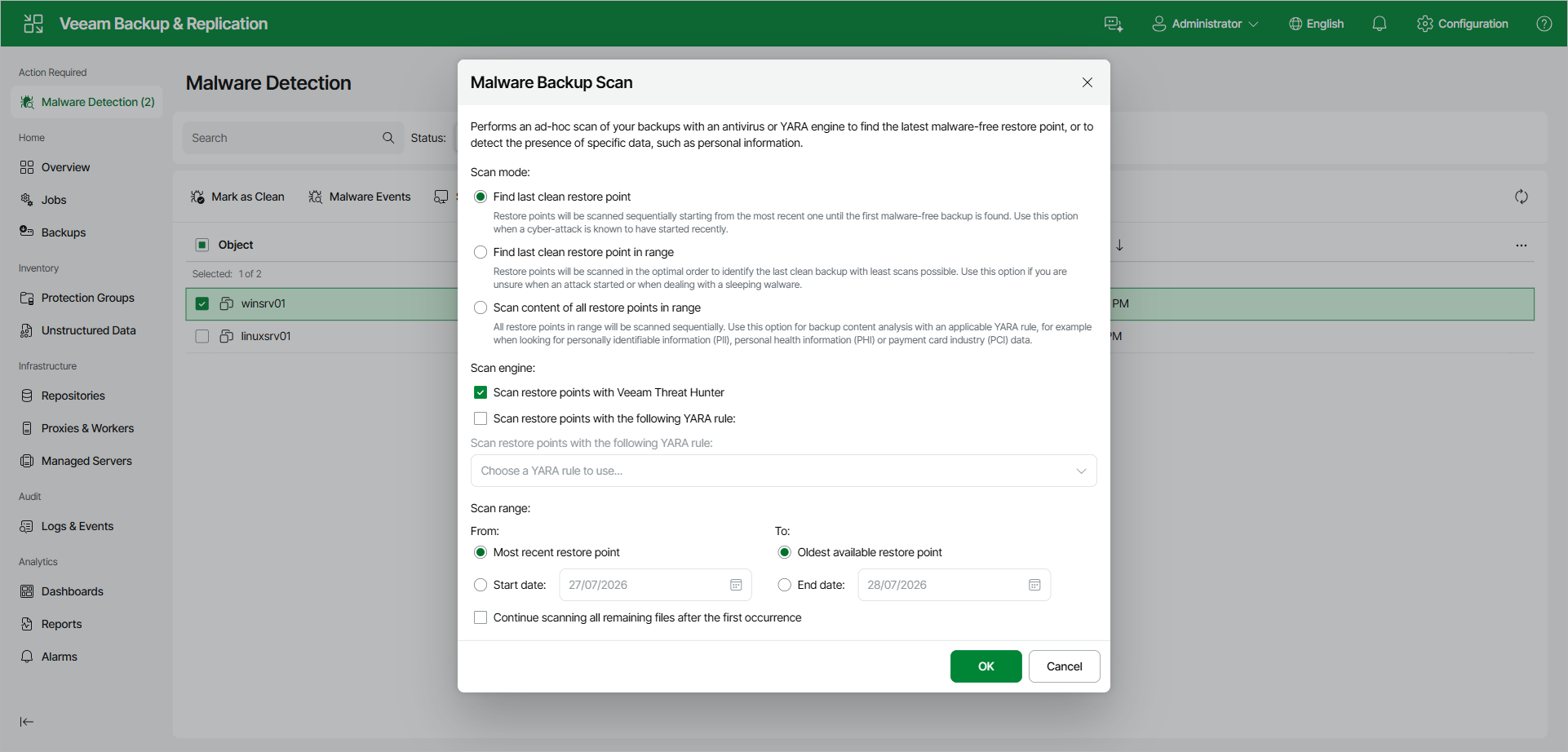
- Select one or more machines, file shares, or object storage backups and click Scan Backups.
- In the Malware Backup Scan window, select the scan mode:
- Find last clean restore point.
- Find last clean restore point in range.
- Scan content of all restore points in range.
- Select the scan engine:
- To use Veeam Threat Hunter, select the Scan restore points with Veeam Threat Hunter check box. For more information, see Veeam Threat Hunter for Scan Backup.
- To use YARA, select the Scan restore points with the following YARA rule check box and select a YARA rule. For more information, see YARA Scan for Scan Backup.
- Configure the scan range. You can scan all restore points or restore points within a specific date range.
To continue the scan after the first occurrence is found, select the Continue scanning all remaining files after the first occurrence check box.
- Click OK.