Step 6. Start Recovery Session
At the Summary step of the wizard, review summary information and click Finish.
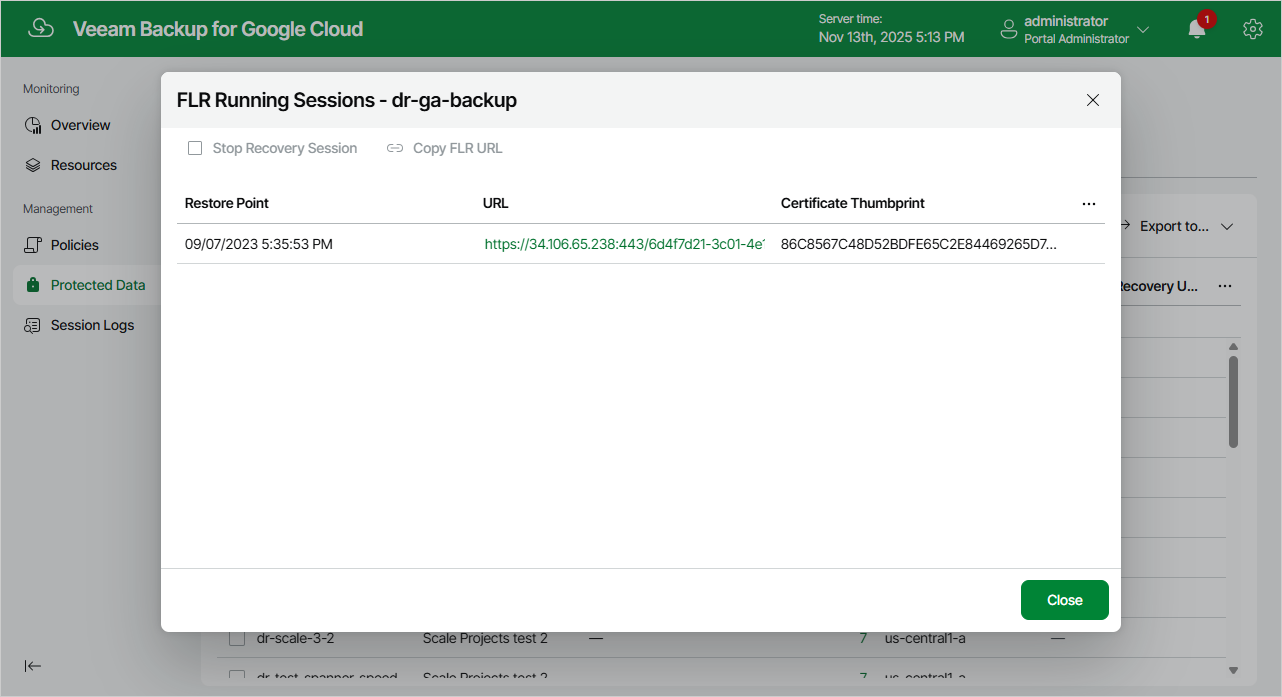
As soon as you click Finish, Veeam Plug-In for Google Cloud will close the File-level Recovery wizard, start a recovery session and display the FLR Running Sessions window. During the recovery session, Veeam Plug-In for Google Cloud will deploy a worker instance and attach disks of the processed VM instance to it.
|
Tip |
|
If you accidentally close the FLR Running Sessions window, navigate to Protected Data and click the link in the File-Level Recovery URL column to open the window again. |
In the FLR Running Sessions window, you can track the state of the recovery session. In the URL column of the window, Veeam Plug-In for Google Cloud will display a link to the file-level recovery browser. You can use the link in either of the following ways:
- Click the link to open the file-level recovery browser on your local machine while the recovery session is running.
- Copy the link, close the FLR Running Sessions window and open the file-level recovery browser on another machine.
|
Important |
|
When you click Copy FLR URL, Veeam Plug-In for Google Cloud copies the following information to the clipboard:
To avoid a man-in-the-middle attack, before you start recovering files and folders, check that the certificate thumbprint displayed in the web browser from which you access the file-level recovery browser matches the provided certificate thumbprint. |