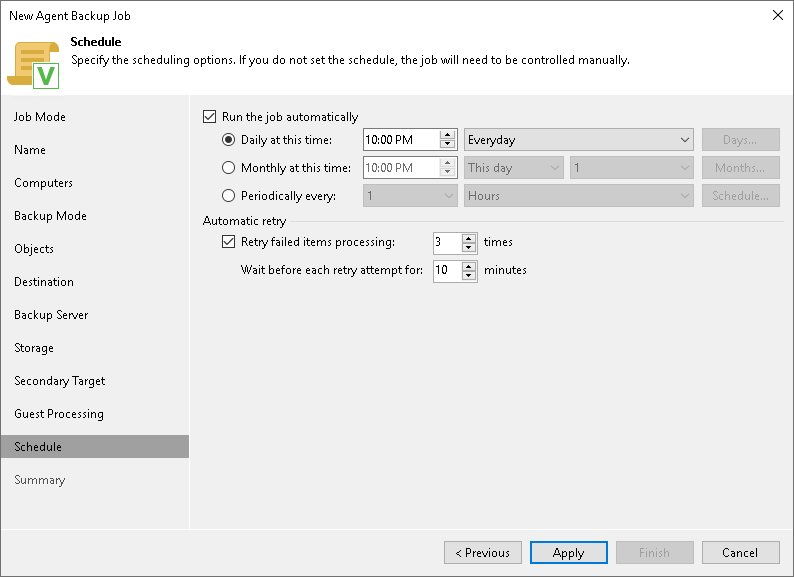
Step 12. Specify Backup Schedule
At the Schedule step of the wizard, specify the schedule according to which you want to perform backup.
To specify the Veeam Agent backup policy schedule:
|
NOTE |
|
The backup job on each Veeam Agent computer runs according to the local time of the computer. |
- Select the Run the job automatically check box. If this check box is not selected, you will have to start the backup policy manually to create backup.
|
NOTE |
|
Depending on the type of protected computer you selected at the Job Mode step of the wizard, Veeam Backup & Replication provides the following scheduling options for the backup job:
|
- Define scheduling settings for the policy:
- To run the policy at specific time daily, on defined week days or with specific periodicity, select Daily at this time. Use the fields on the right to configure the necessary schedule.
- To run the policy once a month on specific days, select Monthly at this time. Use the fields on the right to configure the necessary schedule.
- To run the policy repeatedly throughout a day with a specific time interval, select Periodically every. In the field on the right, select the necessary time unit: Hours or Minutes. Click Schedule and use the time table to define the permitted time window for the policy. In the Start time within an hour field, specify the exact time when the policy must start.
A repeatedly run policy is started by the following rules:
- The defined interval always starts at 12:00 AM. For example, if you configure to run a policy with a 4-hour interval, the policy will start at 12:00 AM, 4:00 AM, 8:00 AM, 12:00 PM, 4:00 PM and so on.
- If you define permitted hours for the policy, after the denied interval is over, the policy will start immediately and then run by the defined schedule.
For example, you have configured a policy to run with a 2-hour interval and defined permitted hours from 9:00 AM to 5:00 PM. According to the rules above, the policy will first run at 9:00 AM, when the denied period is over. After that, the policy will run at 10:00 AM, 12:00 PM, 2:00 PM and 4:00 PM.
- To run the policy continuously, select the Periodically every option and choose Continuously from the list on the right. A new backup policy session will start as soon as the previous backup policy session finishes.
- In the Automatic retry section, define whether Veeam Agent for Linux must attempt to run the backup policy again if the policy fails for some reason. Enter the number of attempts to run the policy and define time intervals between them. If you select continuous backup, Veeam Agent for Linux will retry the policy for the defined number of times without any time intervals between the policy runs.
- In the Backup window section, define the time interval during which the backup job must complete. The backup window helps prevent the job from overlapping with production hours and reduces the impact on server performance. To configure a backup window for the job, do the following:
- Select the Terminate job outside of the backup window check box and click Window.
- In the Time Periods window, define the allowed and prohibited hours for backup. If the job runs outside the allowed window, it is terminated automatically.
|
NOTE |
|
After you click Apply at the Schedule step of the wizard, Veeam Backup & Replication will immediately apply the backup policy to protected computers. |