Performing Guest OS File Restore
Veeam Backup & Replication allows you to use image-level backups to restore files and folders of various VM guest OS file systems from the Veeam Backup & Replication console. For more information, see Guest OS File Restore.
|
Important |
|
To restore guest OS files and folders, do the following:
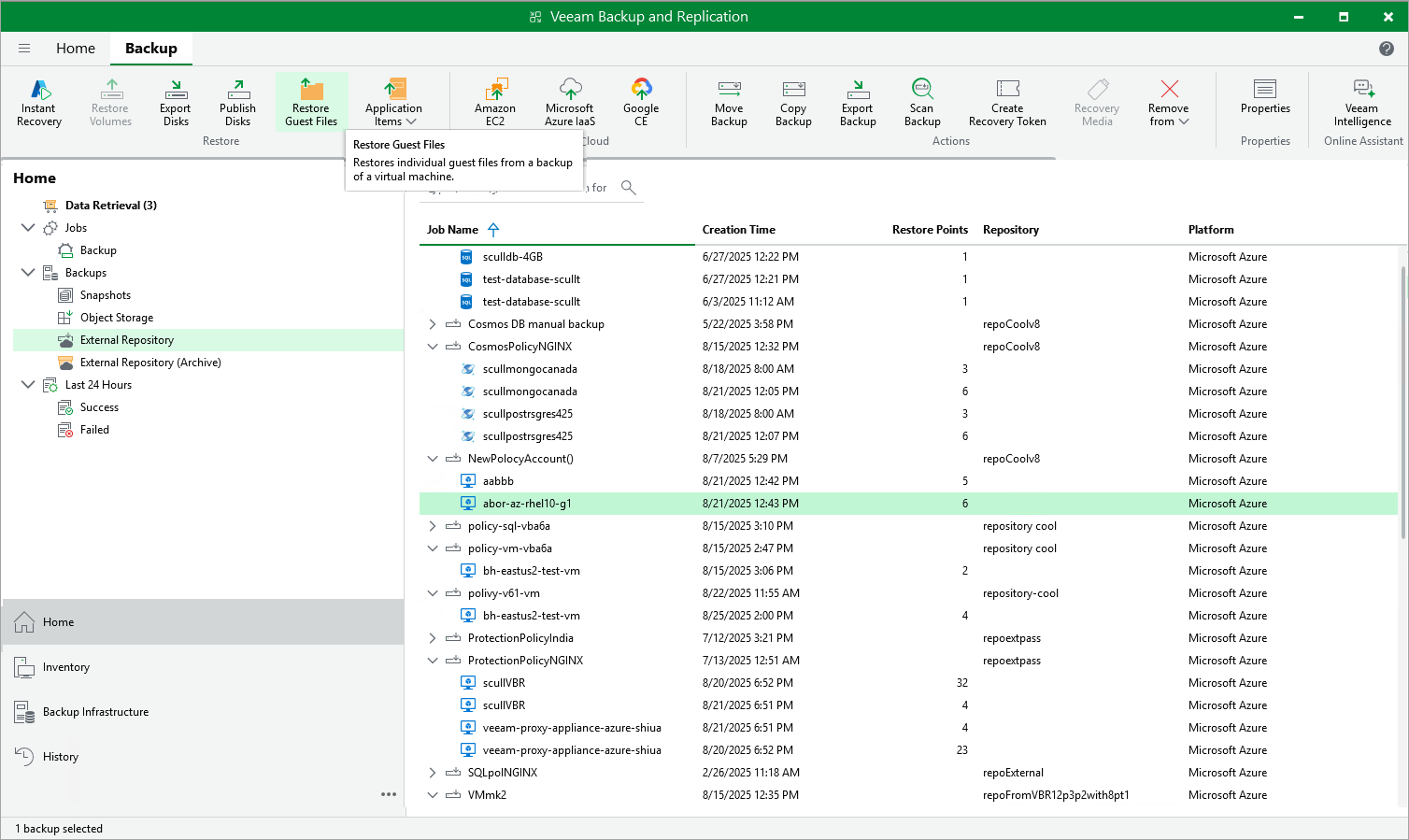
- In the Veeam Backup & Replication console, open the Home view.
- Navigate to Backups > External Repository.
- Expand the backup policy that protects an Azure VM whose files and folders you want to restore, select the necessary VM and click Restore Guest Files on the ribbon.
- Complete the File Level Restore wizard as described in Recovering Guest OS Files Using Console.
|
Tips |
|