Creating Backup Policies
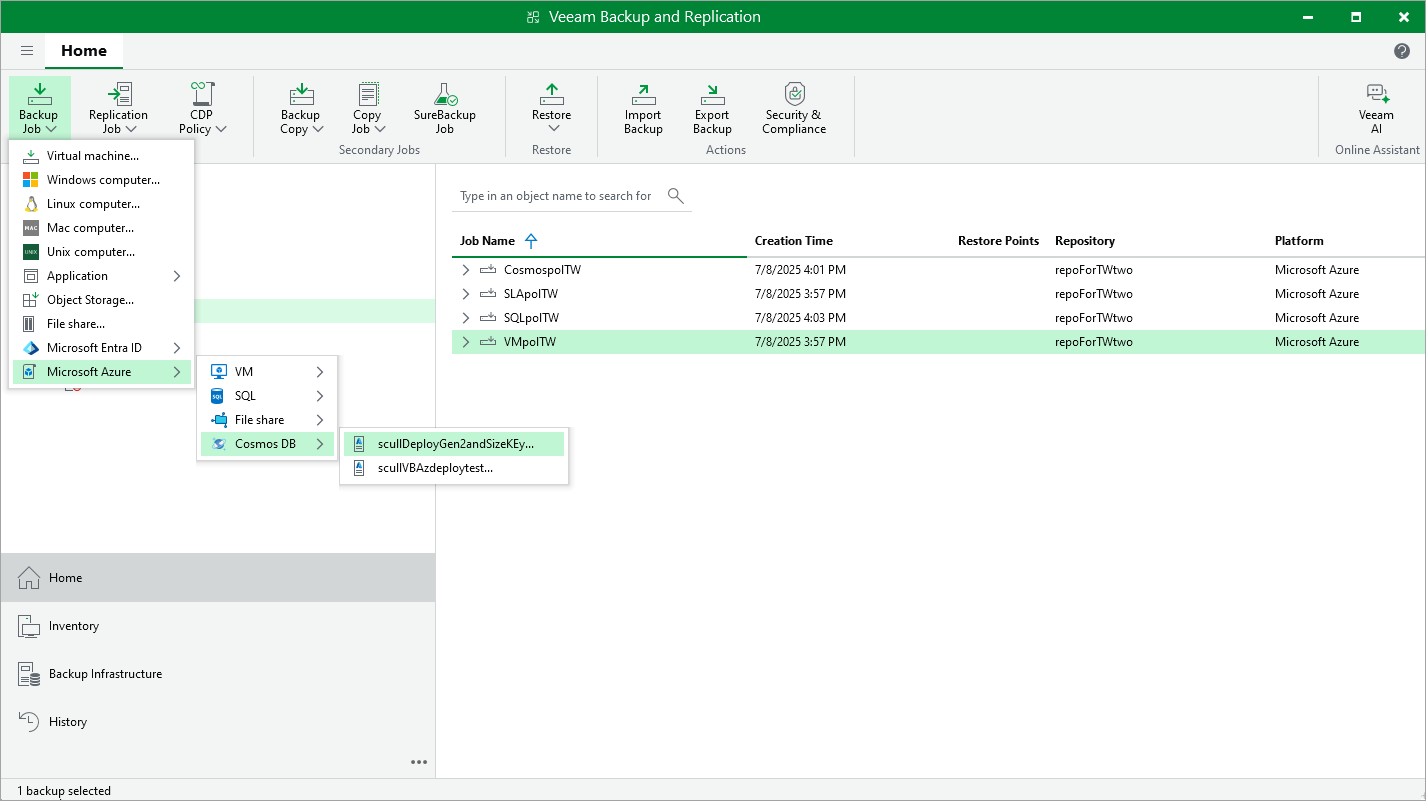
You can create backup policies in the backup appliance Web UI only. However, you can launch the Add Policy wizard directly from the Veeam Backup & Replication console — to do that, use either of the following options:
- Switch to the Home tab, click Backup Job on the ribbon, navigate to Microsoft Azure > VM, SQL, File share or Cosmos DB, and select the backup appliance on which you want to create the backup policy.
- Open the Home view, right-click Jobs, navigate to Backup > Microsoft Azure > VM, SQL, File share or Cosmos DB, and select the backup appliance on which you want to create the backup policy.
Veeam Backup & Replication will open the Add VM Policy, Add Azure SQL Policy, Add Azure Files Policy or Add Cosmos DB Policy wizard in a web browser. Complete the wizard as described in sections Creating VM Backup Policies, Creating SQL Backup Policies, Creating Azure Files Backup Policies or Creating Cosmos DB Backup Policies.