Restoring Files and Folders to Another Location
|
NOTE |
|
Consider the following:
|
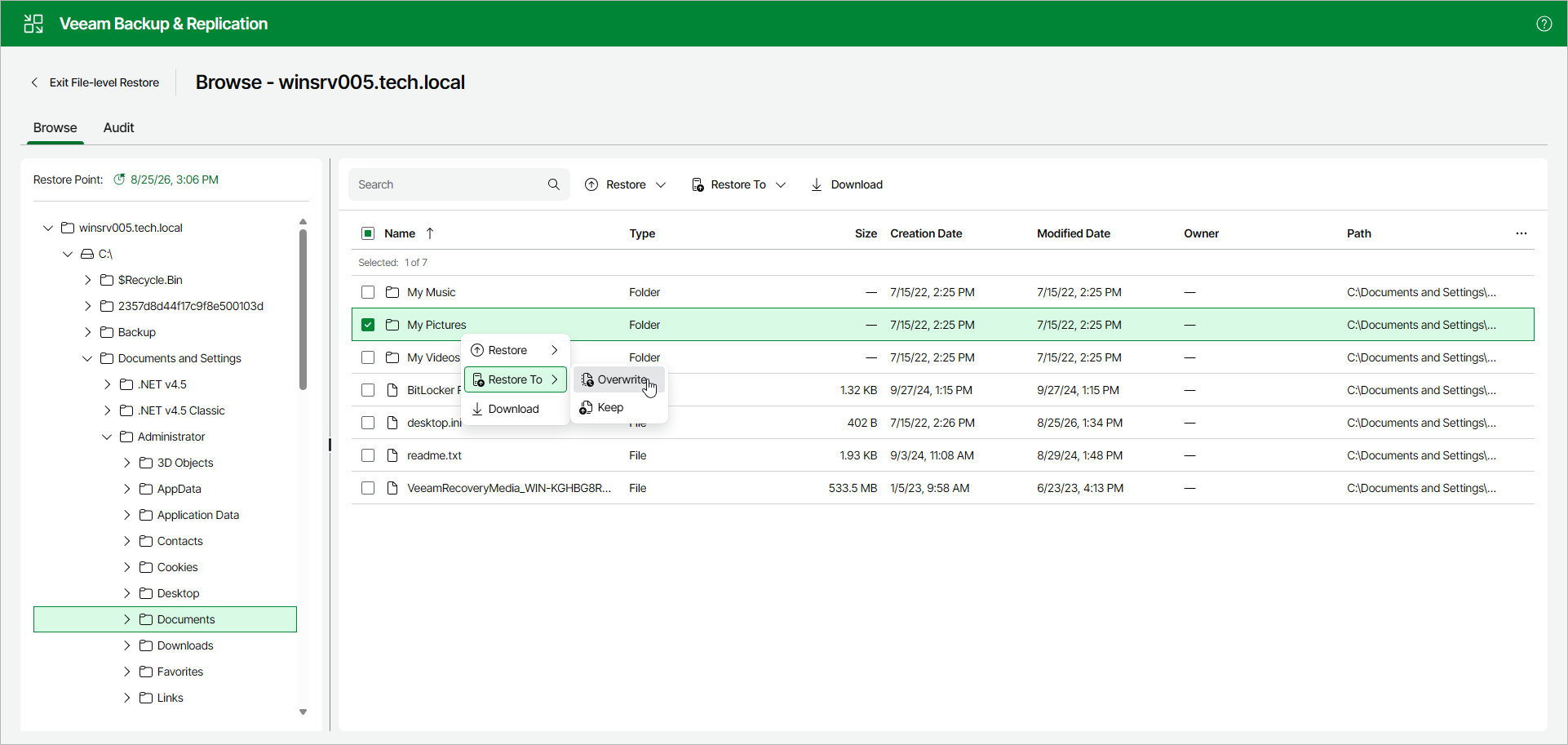
To restore files and folders to another location, do the following:
- Select the necessary files and folders in the working area.
- Right-click one of the selected items and select one of the following:
- To overwrite files and folders with identical names at the target location, select Restore To > Overwrite.
- To keep files and folders with identical names at the target location, select Restore To > Keep.
Veeam Backup & Replication will add the RESTORED_YYYYMMDD_HHMMSS postfix to the original names and store the restored items at the target location.
Alternatively, you can select the same commands on the ribbon.
- In the Select Host window, select the target Veeam Agent computer.
- If prompted, in the Credentials window, provide credentials to connect to the target computer.
- In the Choose Target Folder window, specify a path to the folder where the restored objects will be saved.