Setting Veeam Agent Backup Policy Permissions
You can view who owns a Veeam Agent backup policy and who can access it. You can also change the policy owner and grant or revoke access to the policy on the Permissions tab.
The Job owner box shows the user account that owns the policy. By default, the policy is owned by the account that created it. Only the current policy owner or a Veeam Backup & Replication administrator can change the policy owner or modify access entries.
The Effective Access box lists the users and roles that have been granted access to the policy and the level of access each one has. By default, no access is granted.
You can set Veeam Agent backup policy permissions in one of the following ways:
Setting Veeam Agent Backup Policy Permissions Using Veeam Backup & Replication Console
To open the Permissions tab:
- Open the Home view.
- In the inventory pane, select Jobs.
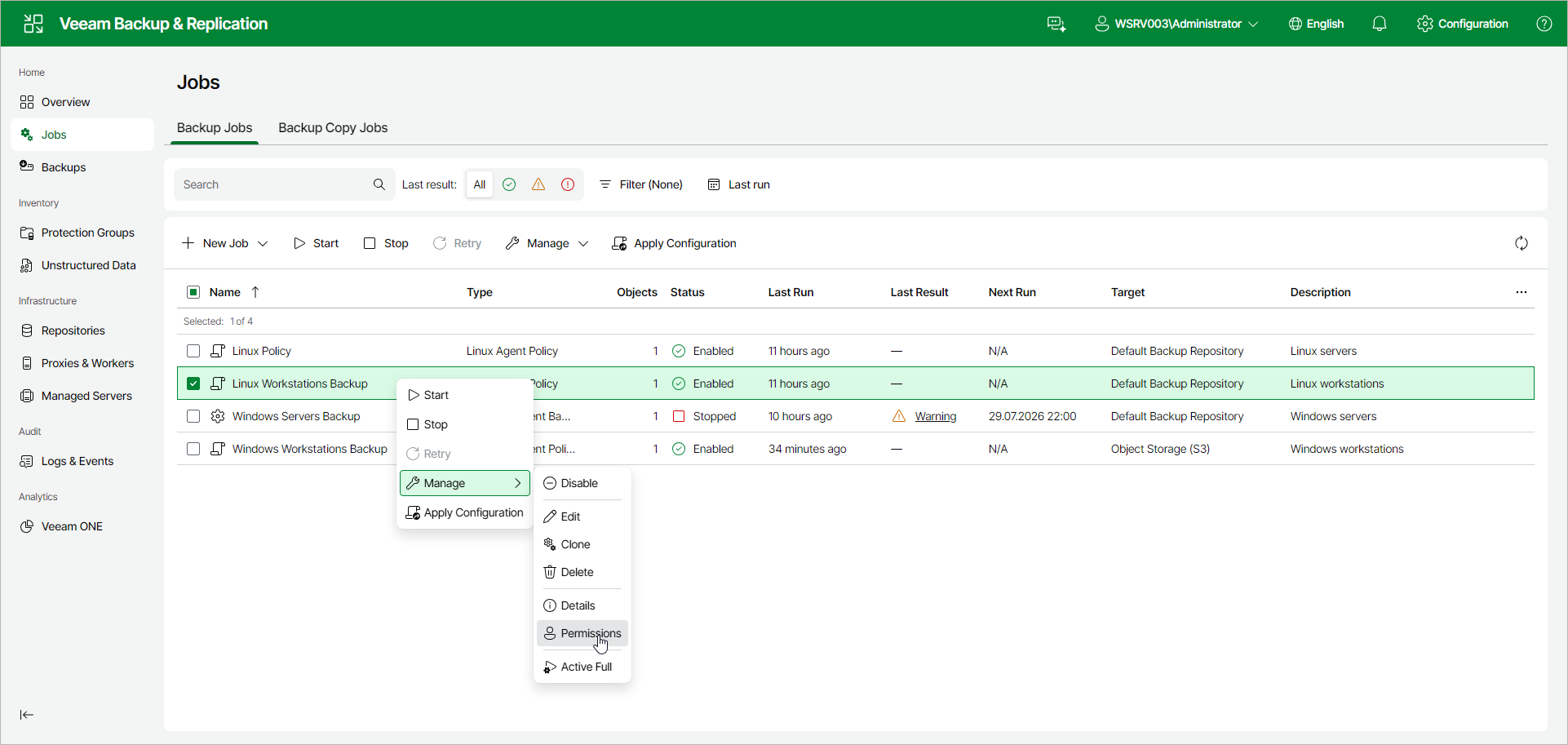
- In the working area, select the Veeam Agent backup policy and click Permissions on the ribbon or right-click the policy and select Permissions.
On the Permissions tab, you can do the following:
- To change the policy owner, click Change next to the Job owner field and select the account that will own the policy.
- To grant access, in the Effective Access section, click Add and select the user or group.
- To revoke access, select an entry in the list and click Remove.
Setting Veeam Agent Backup Policy Permissions Using Veeam Backup & Replication Web UI
To open the Permissions tab:
- In the management pane, click Jobs.
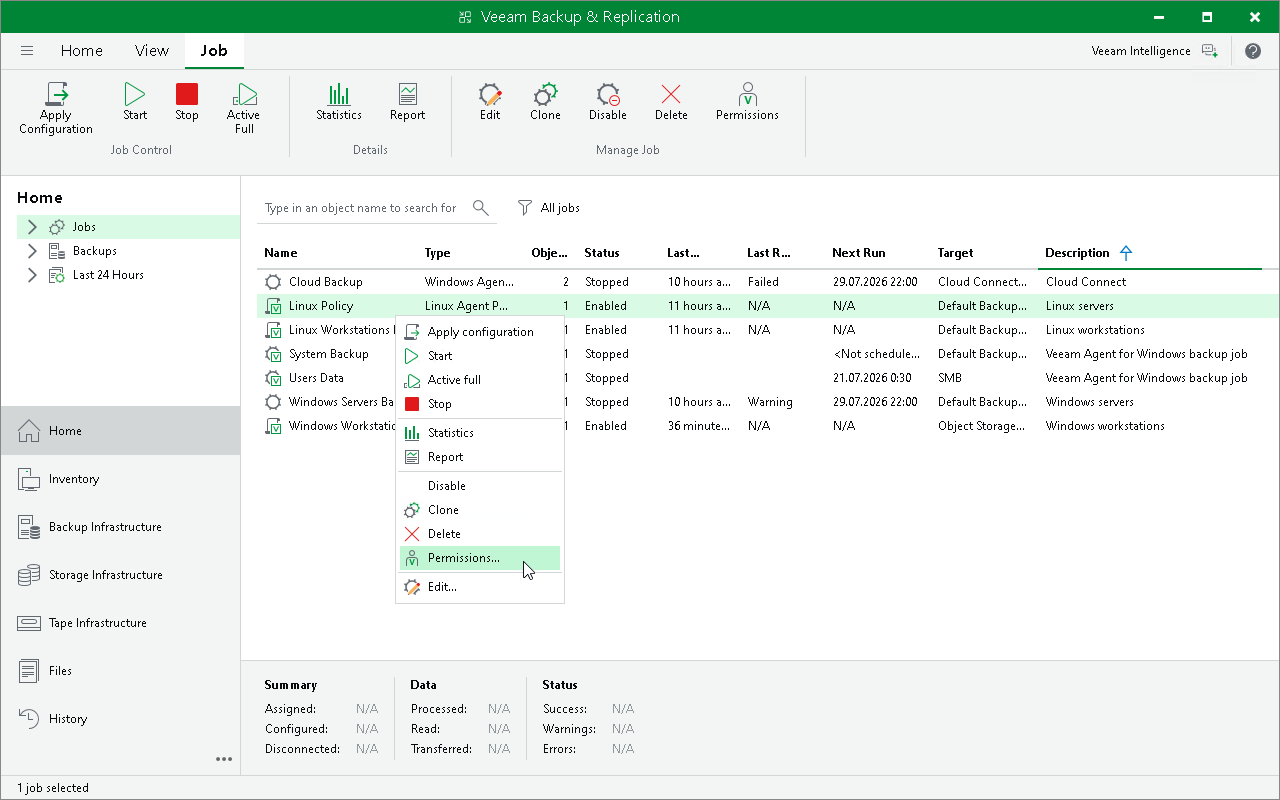
- Select the check box next to the necessary backup policy, and from the Manage drop-down list, select Permissions. Alternatively, right-click the policy and click Manage > Permissions.
For details on how to change the policy owner and grant or revoke access on the Permissions tab, see Managing Backup Job Permissions.