Scheduling Settings for Servers
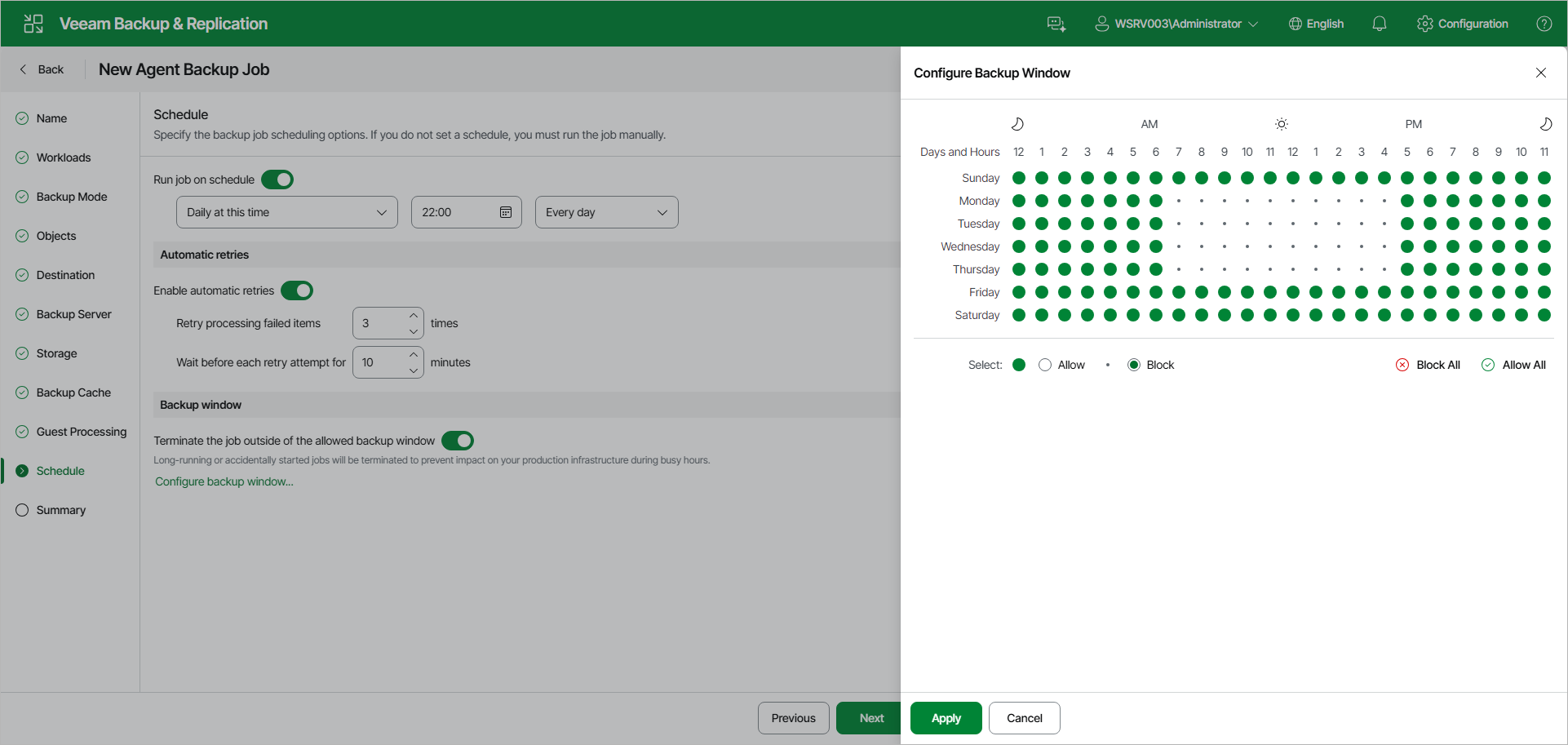
At the Schedule step of the wizard, specify the schedule according to which you want to perform backup.
To specify the policy schedule:
|
NOTE |
|
The backup job on each Veeam Agent computer runs according to the local time of the computer. |
- Turn on the Run job on schedule toggle. If the toggle is off, you will have to start the backup policy manually to create backup.
- Define scheduling settings for the policy:
- To run the policy at a specific time daily, on defined week days or with specific periodicity, select Daily at this time from the drop-down list. Use the fields on the right to configure the necessary schedule.
- To run the policy once a month on specific days, select Monthly at this time. Use the fields on the right to configure the necessary schedule.
- To run the policy repeatedly throughout a day with a specific time interval, select Periodically every. In the field on the right, select the necessary time unit: Hours or Minutes. Click Schedule and use the time table to define the permitted time window for the policy. In the Start time within an hour field, specify the exact time when the policy must start.
A repeatedly run policy is started by the following rules:
- The defined interval always starts at 12:00 AM. For example, if you configure to run a policy with a 4-hour interval, the policy will start at 12:00 AM, 4:00 AM, 8:00 AM, 12:00 PM, 4:00 PM and so on.
- If you define permitted hours for the policy, after the denied interval is over, the policy will start immediately and then run by the defined schedule.
For example, you have configured a policy to run with a 2-hour interval and defined permitted hours from 9:00 AM to 5:00 PM. According to the rules above, the policy will first run at 9:00 AM, when the denied period is over. After that, the policy will run at 10:00 AM, 12:00 PM, 2:00 PM and 4:00 PM.
- To run the policy continuously, select the Periodically every option and choose Continuously from the list on the right. A new backup policy session will start as soon as the previous backup policy session finishes.
- In the Automatic retries section, turn on the Enable automatic retries toggle if you want Veeam Agent for Microsoft Windows to attempt to run the backup policy again if the policy fails for some reason. In the Retry processing failed items field, specify the number of attempts to run the policy. In the Wait before each retry attempt for field, specify the time interval between attempts in minutes. If you select continuous backup, Veeam Backup & Replication or Veeam Agent for Microsoft Windows retries the policy for the defined number of times without any time intervals between the policy runs.
If a backup policy fails and Veeam Agent retries the session, Veeam Agent does not transfer all the data again. Instead, Veeam Agent continues data transfer that was started before the backup policy fail. To do so, Veeam Agent compares hash values for data blocks on source and target. After the hash comparison, Veeam Agent also transfers only those data blocks that were not transferred before the policy fail. If data blocks on source were changed before the retry, Veeam Agent transfers these data blocks as well.
|
NOTE |
|
The automatic retry does not start if you run the backup policy manually. In this case, you can manually retry the backup policy. To learn more, see Retrying Veeam Agent Backup Job. |
- In the Backup window section, define the time interval within which the backup policy is allowed to run. The backup window prevents the policy from overlapping with production hours and ensures that the policy does not impact performance of your server. To set up a backup window for the policy:
- Turn on the Terminate the job outside of the allowed backup window toggle and click Configure backup window.
- In the Configure Backup Window window, use the time table to define the allowed and blocked hours for the backup policy:
- The green area indicates the allowed backup window — the hours when the backup policy is allowed to run.
- The white area indicates the blocked window — the hours when the backup policy is not allowed to run. If the Terminate the job outside of the allowed backup window toggle is on, a policy that is still running when the blocked window starts is automatically terminated.
- To change the state of individual cells, next to Select, select Allow or Block, and then click or drag over the cells in the time table. To apply the same state to all cells, click Allow All or Block All.
If the policy exceeds the allowed window, it will be automatically terminated. In this case, data transport and backup chain transformation processes are stopped. Keep in mind that this behavior differs from a VM backup job where backup window affects data transport process and health check operations only.
|
|
|
The backup window does not affect the process of uploading backup files from the backup cache to the target storage. If Veeam Agent creates one or more backup files in the backup cache, and then the backup target becomes available, Veeam Agent uploads backup files to the target location immediately, regardless of the specified backup window. |

|
|
If the power settings on the Veeam Agent computer do not allow Veeam Agent for Microsoft Windows to wake the computer from sleep for scheduled backups (for example, wake up timers are disabled in the power plan, or the computer uses the Modern Standby power model), scheduled backups will not run. To adjust the power settings, navigate to Control Panel > All Control Panel Items > Power Options > Edit Plan Settings. On computers that use Modern Standby, Veeam Agent for Microsoft Windows also detects it and adjusts scheduled backups accordingly: it does not start scheduled backups while the computer is in Modern Standby, and it postpones Modern Standby if a backup is already running. |