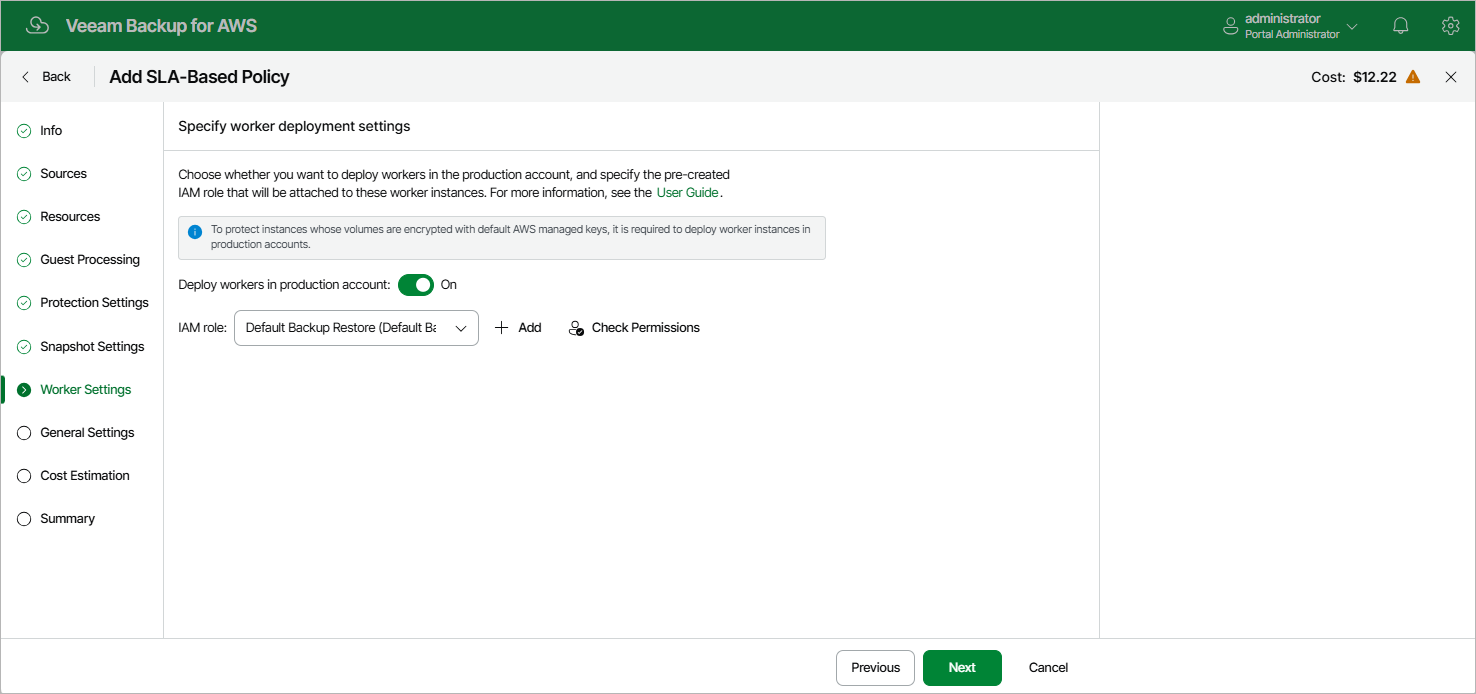
Step 8. Configure Worker Settings
By default, the backup appliance deploys worker instances used to perform backup operations in the backup account. However, you can instruct the backup appliance to deploy worker instances in a production account — that is, the same AWS account to which the processed resources belong. To do that, set the Deploy workers in production account toggle to On.
Depending on the option selected at step 3 of the wizard, the following will happen:
- If you have selected the Account option, you will be able to choose an IAM role that will be attached to the worker instances and used by the backup appliance to communicate with these instances. The role you choose must belong to the same account to which the IAM role specified for the backup operation belongs, and must be assigned the permissions listed in section Worker Deployment Role Permissions in Production Accounts.
For an IAM role to be displayed in the list of available roles, it must be added to the backup appliance with the Production worker role selected as described in section Adding IAM Roles. If you have not added the necessary IAM role to the backup appliance beforehand, you can do it without closing the Add Policy wizard. To do that, click Add and complete the Add IAM Role wizard.
- If you have selected the Organization option, the backup appliance will automatically choose an IAM role that will be attached to the worker instances and used by the backup appliance to communicate with these instances. It will be one of the roles specified in the settings of the selected organization identity — either the IAM role whose permissions will be used to perform the backup operation (that is, the Backup and restore IAM role), or the IAM role that will be attached to the worker instances and used by the backup appliance to communicate with these instances (that is, the Production worker IAM role).
For the backup appliance to be able to choose an IAM role automatically, it must be created in all AWS accounts belonging to the selected organization identity, and specified in the organization settings as described in section Adding AWS Organizations (step 3).
|
Important |
|