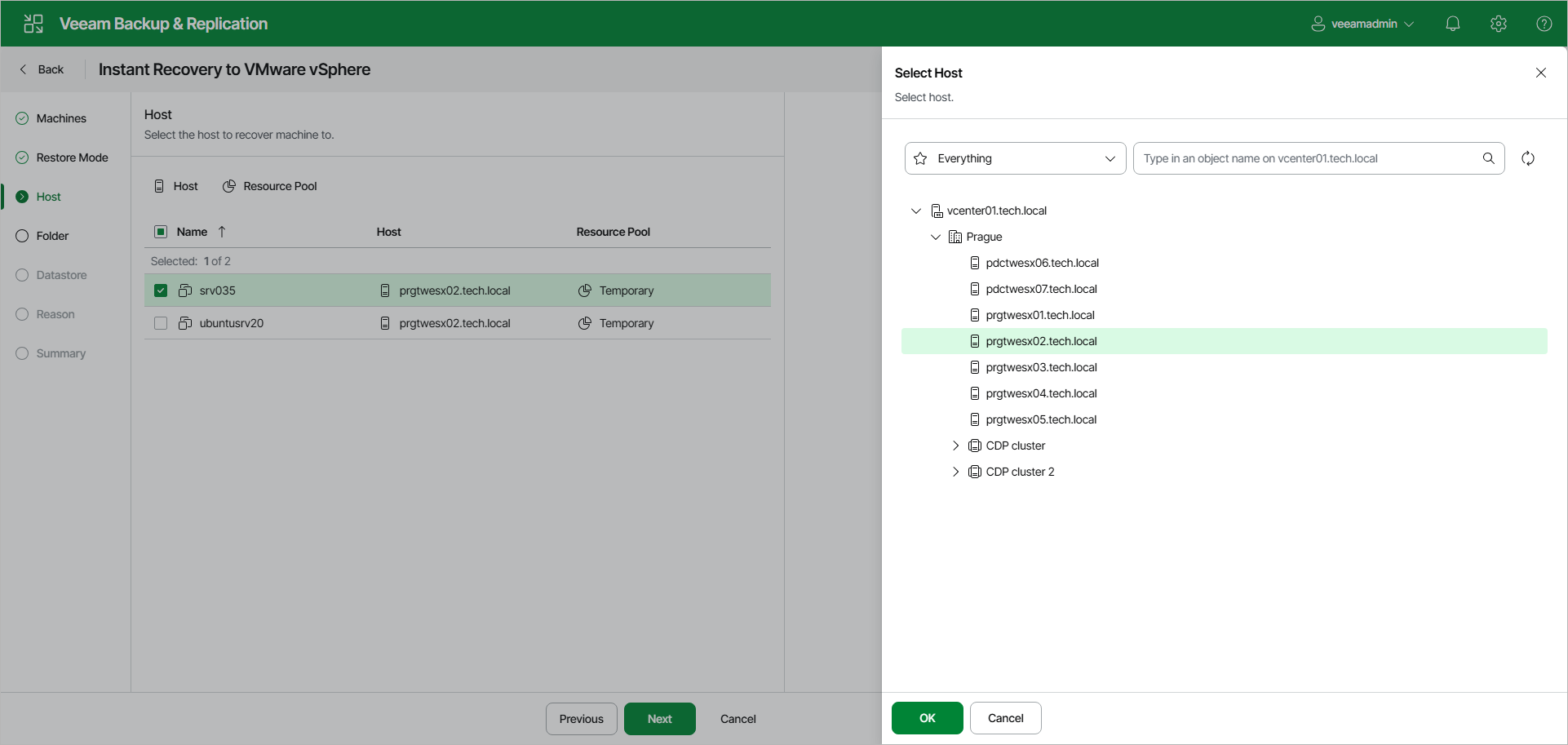
Step 4. Select Target Hosts and Resource Pools
The Host step of the wizard is available if you have selected Restore to a new location or with different settings at the Restore Mode step.
At the Host step of the wizard, specify a target host and resource pool for recovered VMs:
- Select the Mount to all hosts in a cluster check box to mount the vPower NFS datastore to all ESXi hosts in the cluster. Veeam Backup & Replication uses a temporary vPower NFS datastore to run the VMs directly from backups.
Use Mount to all hosts in a cluster to provide datastore redundancy and to avoid the vCenter Server alarm reporting that the datastore is connected to a single host.
- In the list, select the necessary workloads and click the Host or Cluster button.
- From the virtual environment, select a standalone host, clustered host or cluster where the selected workload will be registered.
[For VMware vSphere VM recovery from storage snapshots] Veeam Backup & Replication will create a clone/virtual copy of the storage snapshot, mount it to the selected ESXi host and start the VM on this ESXi host.
- Select one or multiple workloads and click the Resource Pool button.
- In the list, select a resource pool where the selected workloads will be stored.