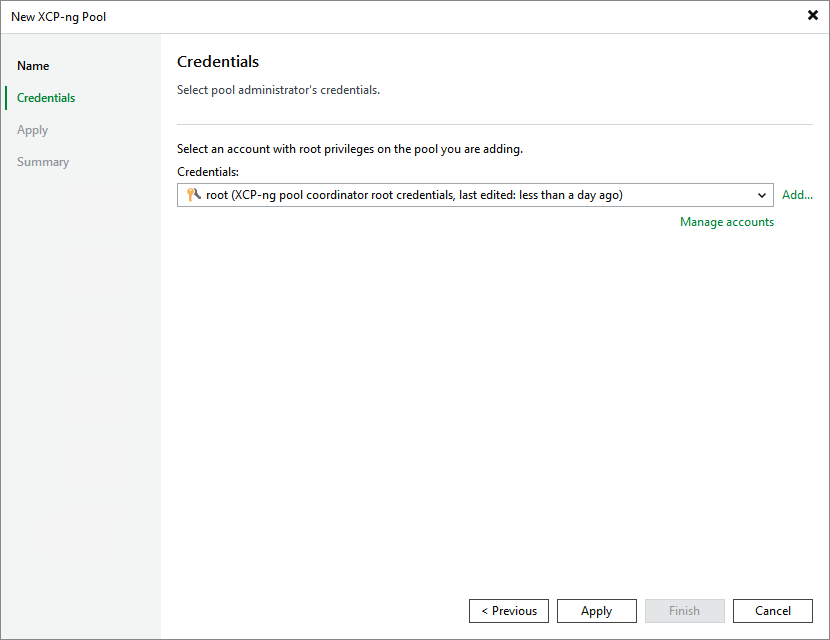
Step 3. Enter Credentials
At the Credentials step of the wizard, specify credentials for an account with root privileges that will be used to access the XCP-ng pool coordinator.
For credentials to be displayed in the Credentials list, they must be added to the Credentials Manager as described in section Standard Accounts. If you have not added the necessary credentials to the Credentials Manager beforehand, you can do this without closing the New XCP-ng Pool wizard. To do that, click either the Manage accounts link or the Add button, and specify the user name, password and description in the Credentials window.
After you click Apply, the backup server will connect to the XCP-ng pool and check its TLS certificate. If the certificate is not installed on the backup server, the Certificate Security Alert Window will display a warning notifying that secure communication cannot be guaranteed. To allow the backup server to connect to the XCP-ng pool using the certificate, click Continue.