Browsing, Searching and Viewing Items
This topic explains how to use Veeam Explorer for Microsoft Active Directory to:
To view the contents of a backup file, open the Browse tab and go to the navigation pane. It shows the hierarchy of Active Directory containers in the backup. After you select a container in the navigation pane, you can see its contents in the preview pane.
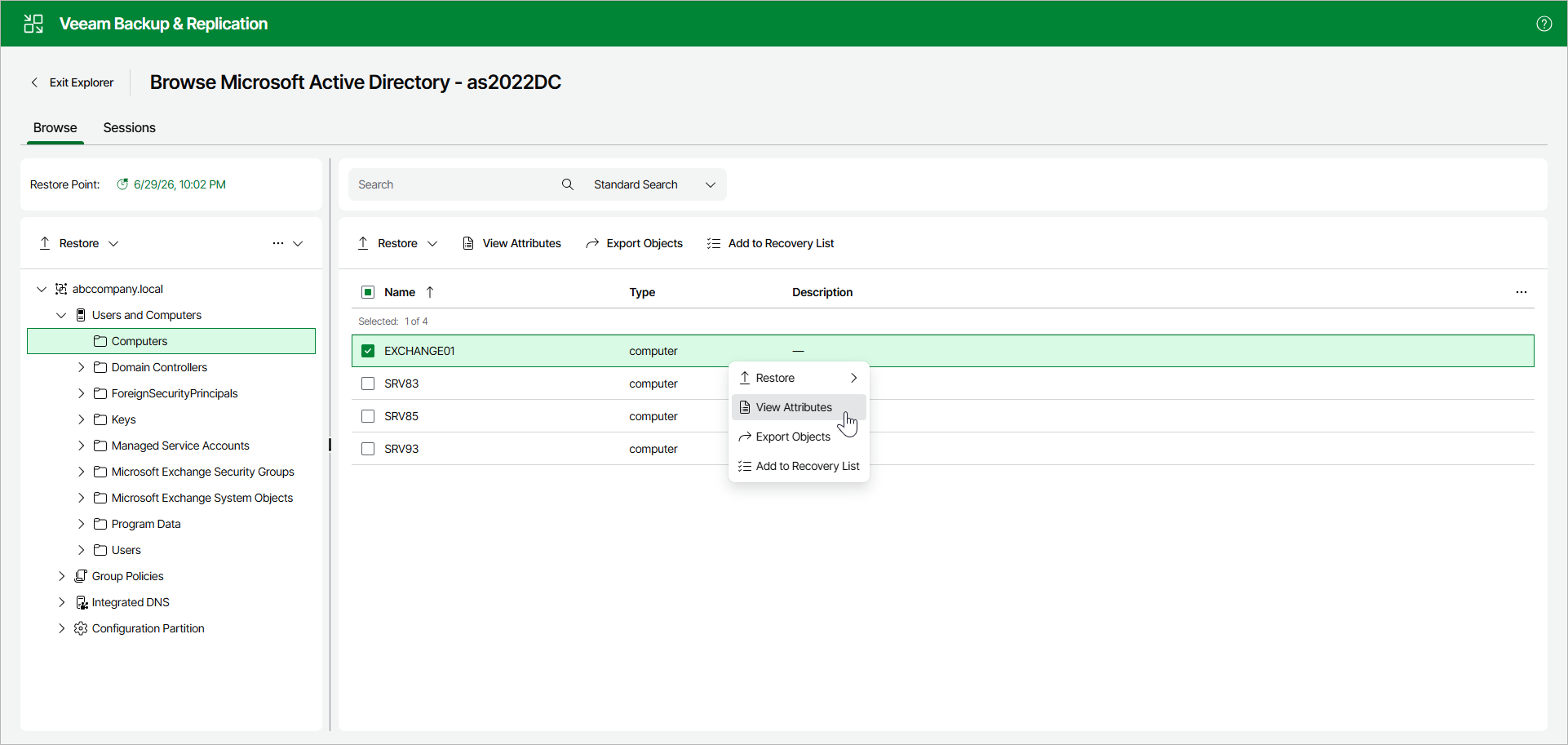
To view container or object attributes, do the following:
- In the navigation pane, select a container; or in the preview pane, select a container or an object.
- In the upper part of the navigation or preview pane, click View Attributes.
Alternatively, you can right-click the container or object and select View Attributes.
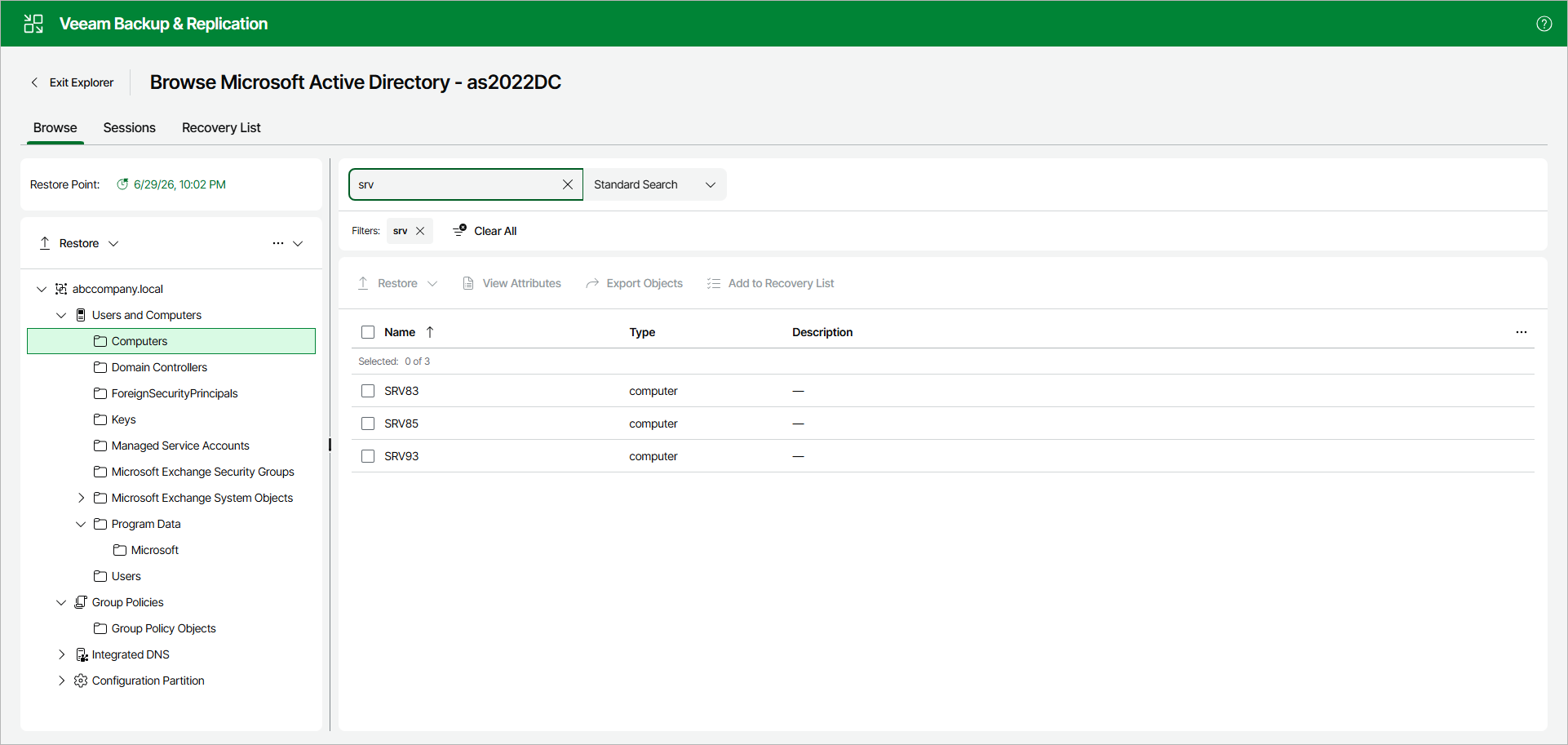
The search mechanism allows you to find items matching specified search criteria.
To search for the required items, do the following:
- In the navigation pane, select the container in which you want to search for items.
-
From the drop-down list next to the Search field, select Standard Search.
- In the Search field, enter a search query. Then press [Enter] or click the search icon.
Note |
To find the exact phrase, use double quotes. For example, "group policy". |
Using LDAP Queries
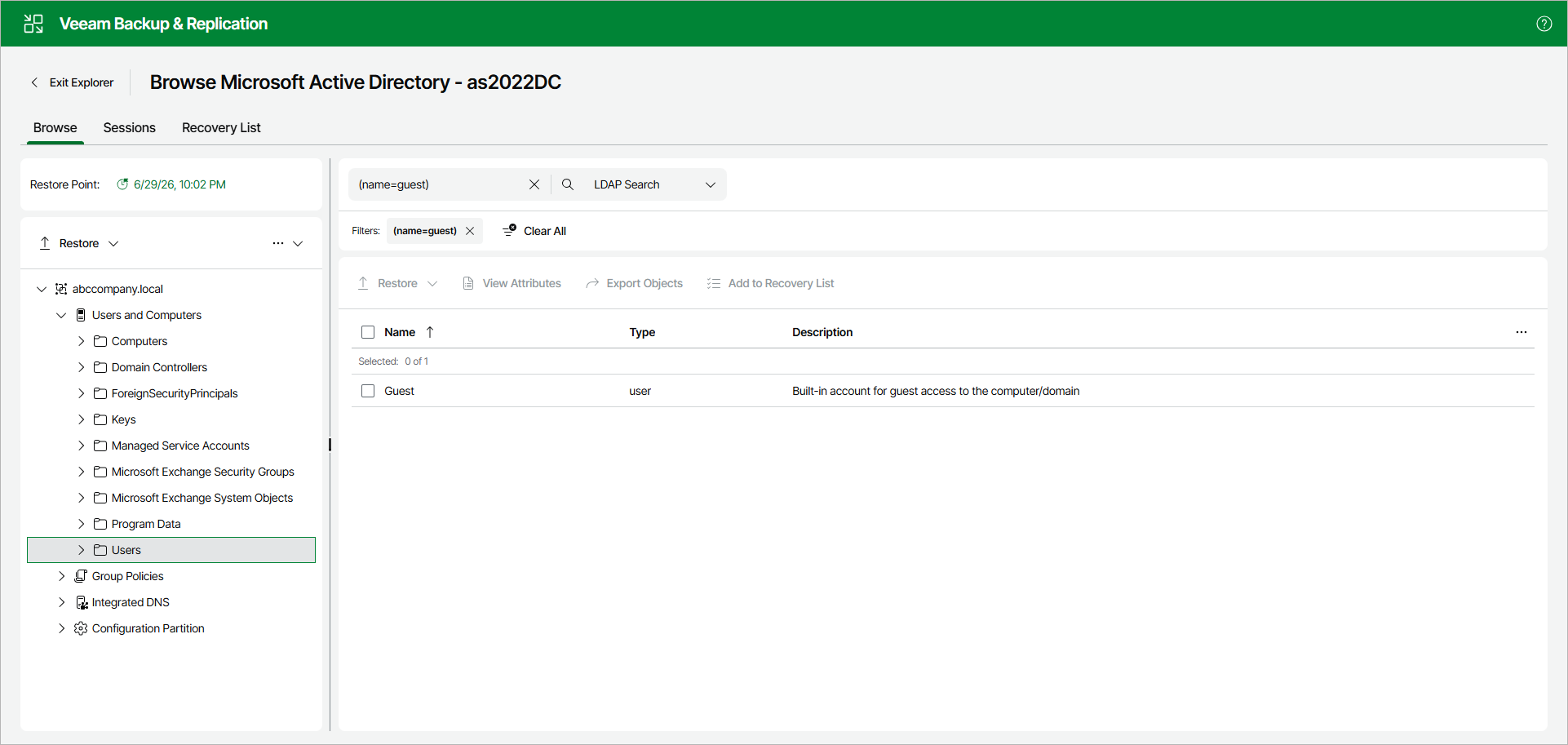
To use an LDAP search query, do the following:
- In the navigation pane, select a container.
- From the drop-down list next to the Search field, select LDAP Search.
- In the Search field, enter an LDAP query. Then press [Enter] or click the search icon.