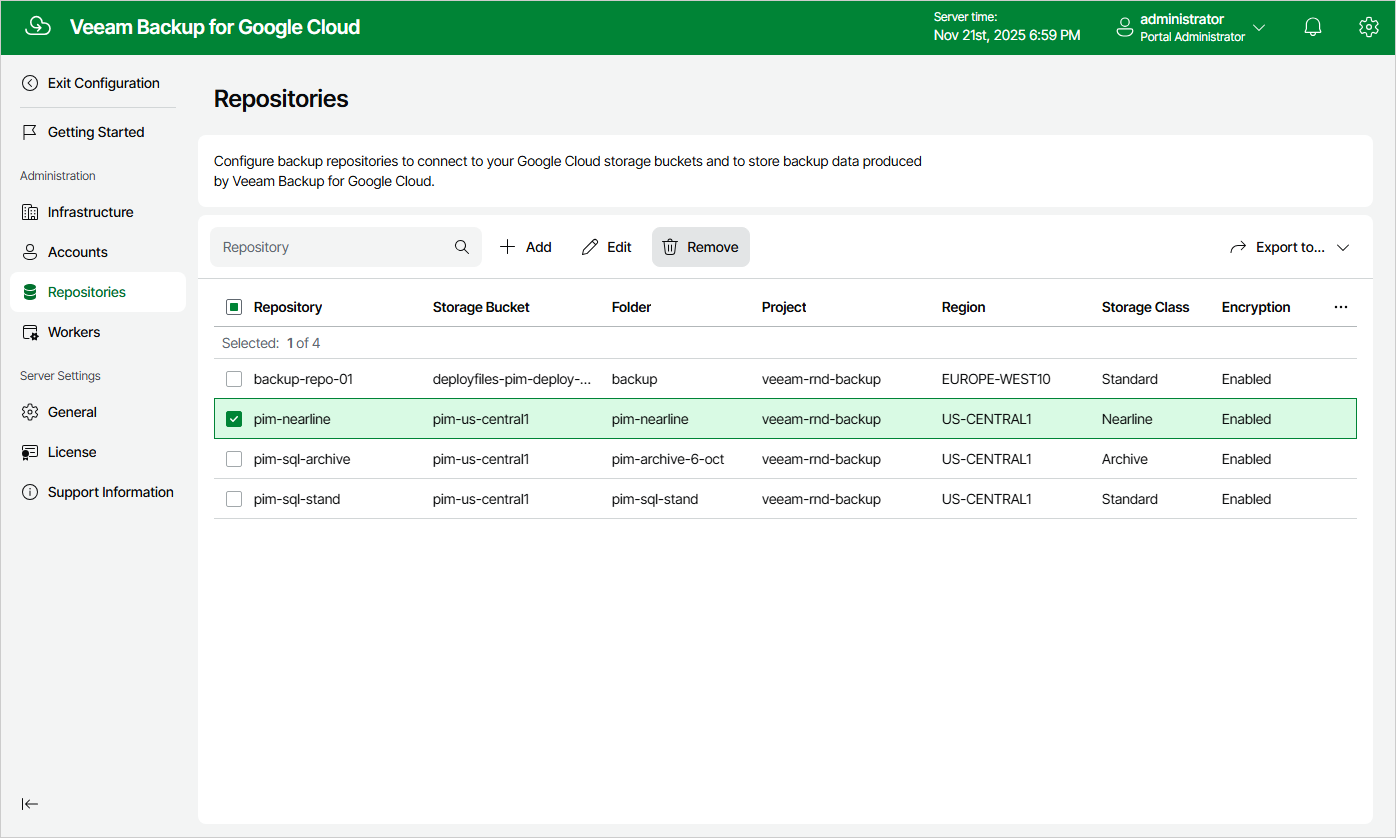
Removing Backup Repositories
The consequences of actions performed with a backup repository depend on whether the repository has been added to the backup infrastructure using the Veeam Backup & Replication console or the backup appliance Web UI.
Removing Backup Repositories Using Console
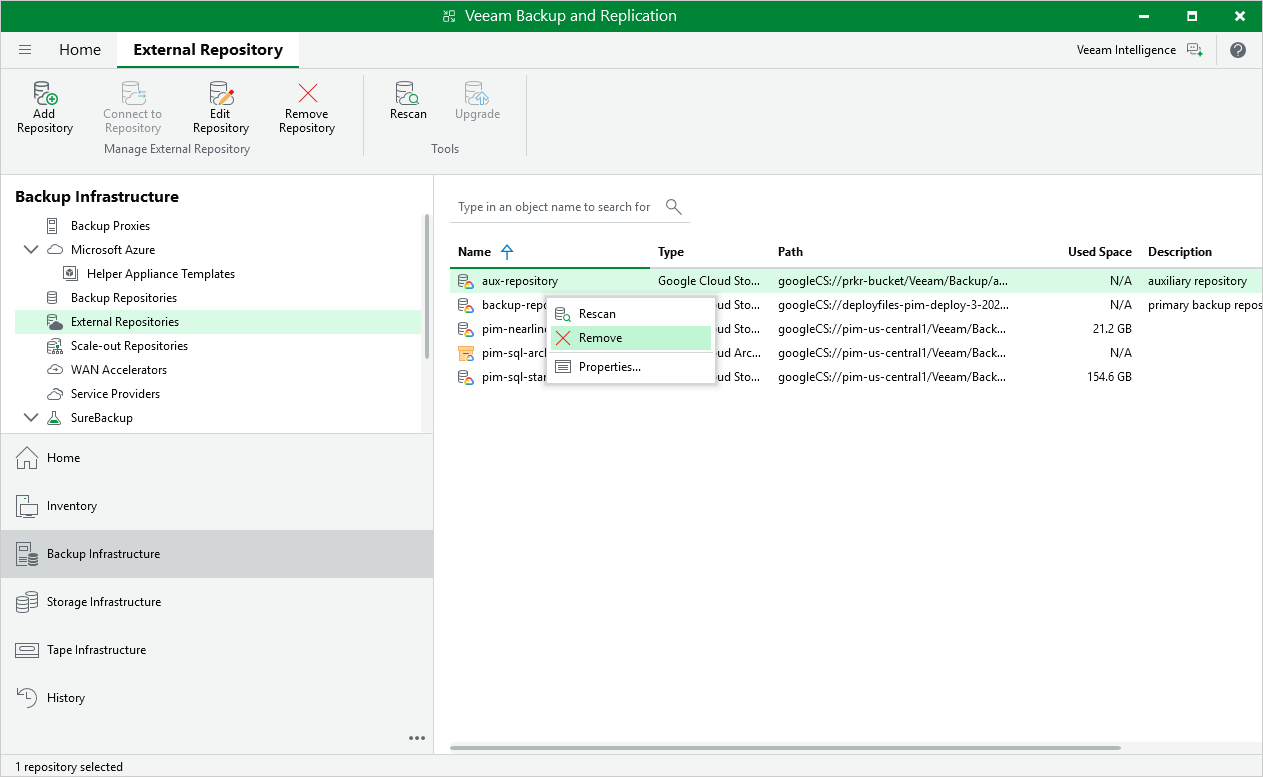
Veeam Plug-In for Google Cloud allows you to permanently remove repositories from the backup infrastructure:
- In the Veeam Backup & Replication console, open the Backup Infrastructure view.
- Navigate to External Repositories.
- Select the necessary repository and click Remove Repository on the ribbon.
Alternatively, you can right-click the repository and select Remove.
|
Important |
|
If you remove a backup repository using the Veeam Backup & Replication console, Veeam Backup & Replication will not propagate these settings to the backup appliance automatically. Consider removing the repository manually as described in section Removing Backup Repositories Using Web UI. |
Removing Backup Repositories Using Web UI
The Veeam Plug-In for Google Cloud Web UI allows you to permanently remove backup repositories if you no longer need them. When you remove a backup repository, Veeam Plug-In for Google Cloud unassigns the repository role from the target storage bucket subdirectory so that the subdirectory is no longer used as a repository.
|
Note |
|
Even though the storage bucket subdirectory is no longer used as a repository, Veeam Plug-In for Google Cloud preserves all backups previously stored in the repository and keeps these backups in Google Cloud Storage. You can assign the subdirectory to a new backup repository so that Veeam Plug-In for Google Cloud imports the backed-up data to the configuration database. In this case, you will be able to perform all disaster recovery operations described in section Performing Restore. If you no longer need the backed-up data, you can remove it as described in section Removing Backups and Snapshots. |
To remove a backup repository, do the following:
- Switch to the Configuration page.
- Navigate to Repositories.
- Select the repository and click Remove.
|
Important |
|
You cannot remove a backup repository that is used by any backup policy or by a scheduled configuration backup. Modify the settings of all the related policies to remove references to the repository, change the configuration backup schedule — and then try removing the repository again. |