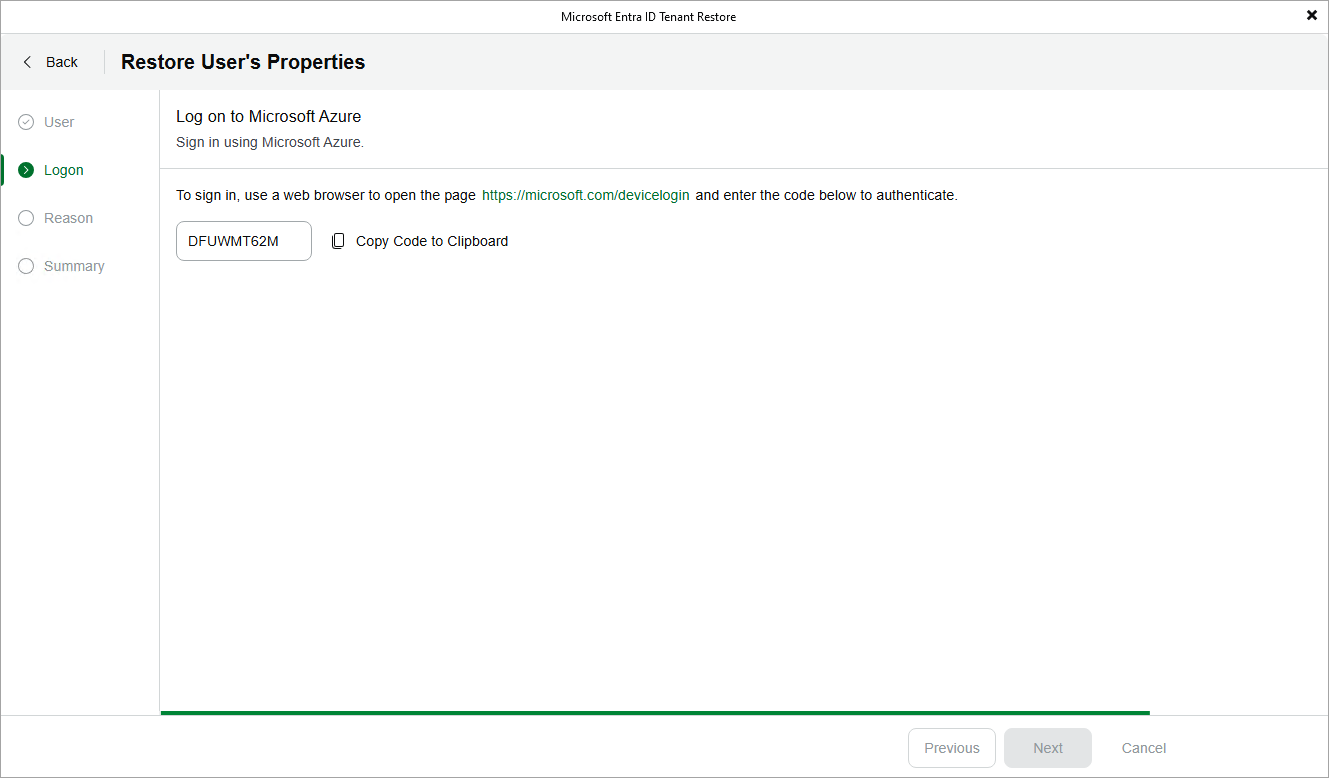
Step 4. Connect to Microsoft Azure
At the Logon step of the wizard, do the following:
- Copy the authentication code to the clipboard.
- Open the https://microsoft.com/devicelogin link.
- On the Microsoft Azure device authentication page, do the following:
- Paste the code that you have copied and click Next .
- Specify the name of a Microsoft Entra ID user account associated with the tenant whose data you want to restore. The name of the account must be specified in the username@domain format.
Keep in mind that the account must have all the permissions required to perform operations with the selected items. For more information on the required permissions, see Permissions .
- Wait for the authentication process to complete, check whether any errors occurred, and then close the Microsoft Azure device authentication page .
- Back to the Microsoft Entra ID Tenant Restore wizard, click Next .