Specifying Directories to Back Up
The Objects step of the wizard is available if you have chosen to create a file-level backup.
At this step of the wizard, you must specify the backup scope by defining what directories with files you want to include in the backup. The specified backup scope settings will apply to all computers that are added to the backup job. If a specified directory does not exist on one or more computers in the job, the job will skip such folder on those computers and back up existing ones.
To specify directories to back up:
- In the Choose directories to backup field, click Add.
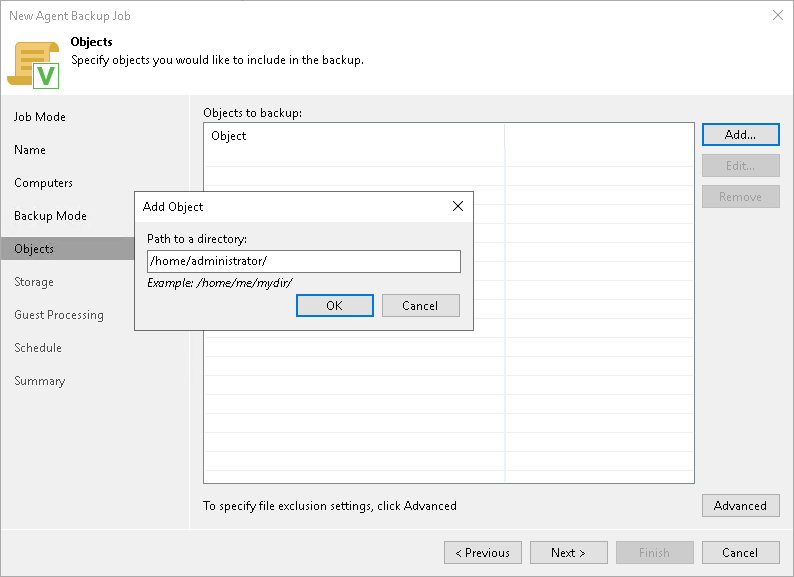
- In the Add Object window, type the path to a directory that you want to back up, for example, /home/user01, and click OK.
|
IMPORTANT |
|
Consider the following about adding objects to the backup scope:
To back up all nested mount points, including network file systems such as mounted NFS or SMB network shared folders, you must specify each mount point individually (for example: /, /home, /var, and so on). For example, to back up a network shared folder mounted to /home/media, adding / or /home to the backup scope will not be sufficient — you must specify the /home/media directory.
|
- Repeat steps 1–2 for all directories that you want to back up.
You can also modify the list of objects in the following ways:
- To edit an object, select it and click Edit on the toolbar.
- To remove an object from the list, select it and click Remove on the toolbar.
Configuring Filters
To include or exclude files of a specific type in/from the file-level backup, you can configure filters.
To configure a filter:
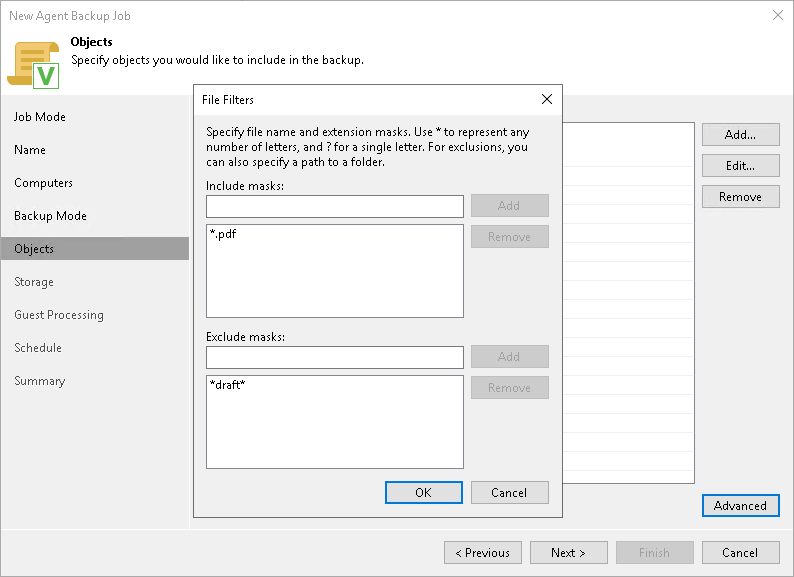
- At the Objects step of the wizard, click Advanced.
- Specify what files you want to back up:
- In the Include masks field, you can specify names and masks for files or file types you want to back up — for example, Report.pdf or *filename*. Veeam Agent will back up only the files or file types specified in the include masks. Other files in the backup scope will not be backed up.
- In the Exclude masks field, you can specify paths to directories, as well as names and masks for files or file types, you do not want to back up — for example, /home/user01, OldReports.tar.gz or *.odt. Veeam Agent will back up all files in the backup scope except files that match the criteria defined in the exclude masks.
|
NOTE |
|
Consider the following when excluding directories:
|
- Click Add.
- Repeat steps 2–3 for each mask that you want to add.
You can use include and exclude masks together. If include and exclude entries overlap, Veeam Agent resolves them as follows:
- If the same directory is specified in both the include and exclude scope, the directory is included in the backup. For example, if /home is added to both scopes, Veeam Agent includes /home in the backup.
- If a file matches both an include mask and an exclude mask, the exclude mask is applied to the results of the include mask. Veeam Agent first builds a list of files that match the include mask, and then removes from this list the files that also match the exclude mask.
For example, if you specify the following masks:
- Include mask: *.pdf
- Exclude mask: *draft*
Veeam Agent for Linux includes in the backup all PDF files whose names do not contain draft.