Configuring Global Object Exclusions
Global exclusions allow you to stop processing objects even if they are included in jobs. When configuring global exclusions, you do not need to change job settings. Global exclusions apply to all types of jobs that process VMs except backup copy jobs and SureBackup jobs. Note that if Veeam Backup & Replication has started to process a VM at the moment when you exclude that VM or its container from processing, Veeam Backup & Replication finishes processing and only then excludes the VM from processing. Global exclusions support VM-level, container-level and tag-based exclusion rules.
At any moment, you can enable processing of the excluded objects so that jobs will continue processing them.
Excluding Objects from Processing
To exclude objects globally, do the following:
- From the main menu, select Global Exclusions > Object Exclusions.
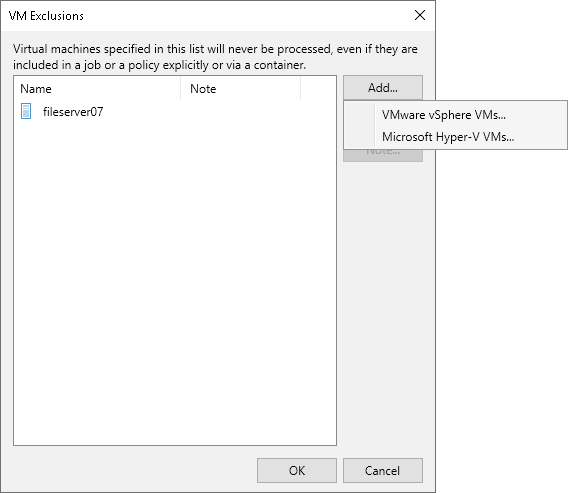
- In the Object Exclusions window, click Add.
- In the Add Objects window, select the objects that you want to exclude from processing. Click Add.
- If you want to add a note why an object is excluded from processing, select it from the list and click Note. In the Edit Note window, enter the note text. Click OK.
Alternatively, you can open the Inventory view and switch to the required view. In the working area, select the VMs that you want to exclude, right-click one of them and select Disable processing. In the Inventory view, VMs excluded from processing will be displayed with the  icon.
icon.
Resuming Processing
To resume processing for the excluded objects, do the following:
- From the main menu, select Global Exclusions > Object Exclusions.
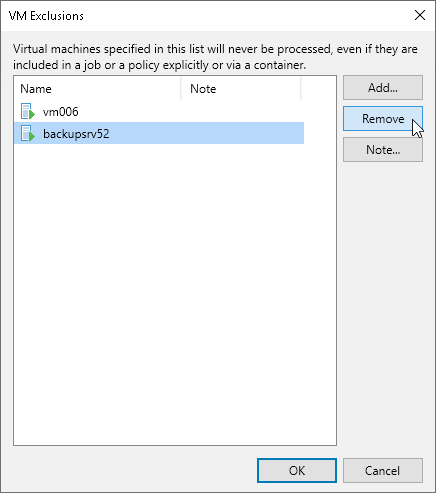
- In the Object Exclusions window, select the objects for which you want to resume processing.
- Click Remove.
Alternatively, you can open the Inventory view and switch to the required view. In the working area, select the VMs that were excluded from processing, right-click one of them and select Disable processing.