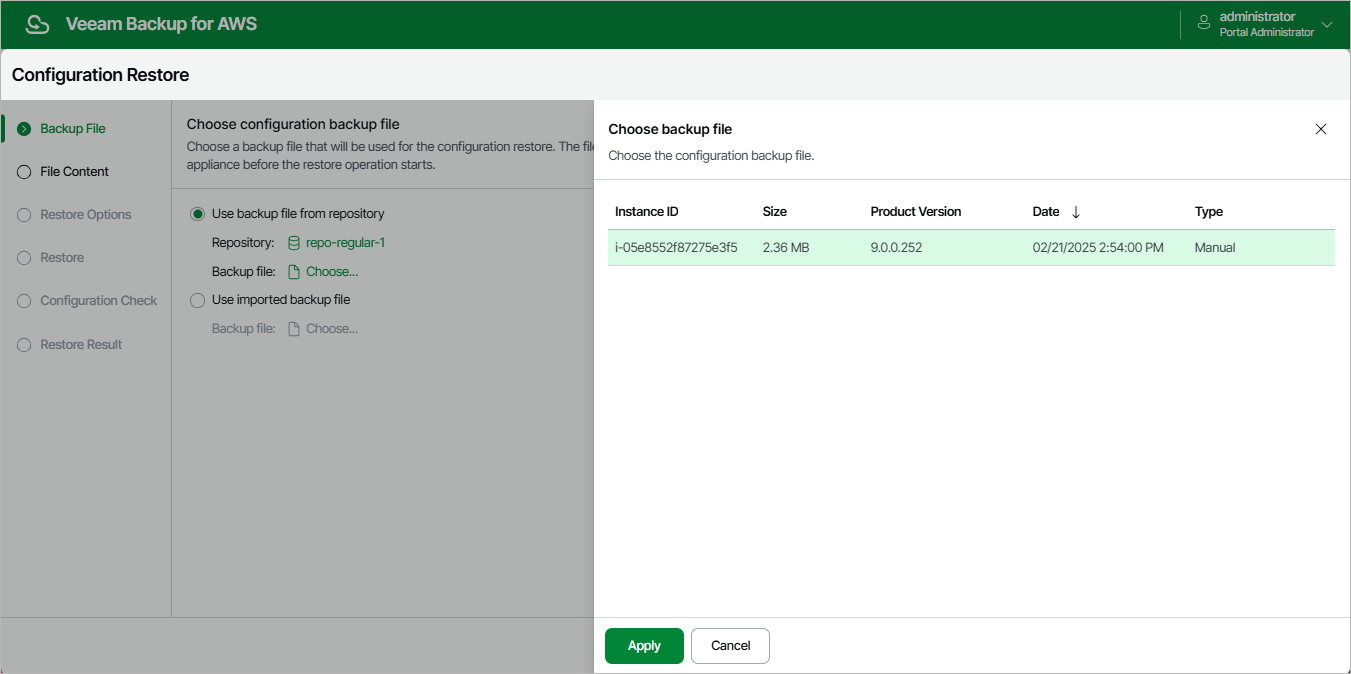
Step 2. Choose Backup File
At the Backup File step of the wizard, choose whether you want to use an exported backup file or a backup file stored in a backup repository.
- If you want to use a file stored in a backup repository, select the Use backup file from repository option and do the following:
- Click the link next to the Repository field, and use the list of available repositories in the Choose repository window to select the repository where the configuration backup file is stored.
For a backup repository to be displayed in the list of available repositories, it must be added to the backup appliance as described in section Adding Backup Repositories Using Web UI. The repository list shows only backup repositories that store configuration backup files.
- Click the link next to the Backup file field, select the necessary file in the Choose backup file window and click Apply.
- If you want to use a file that was exported from this or another backup appliance, select the Use imported backup file option, and do the following:
- Click the link next to the Backup file field.
- In the Import backup file window, browse to the necessary backup file, provide the password that was used to encrypt the file, and click Import.
|
Important |
|
[Applies only if you restore the configuration to another backup appliance] If the selected backup contains storage vaults from the initial backup appliance, the new backup appliance will not be able to access these vaults due to an Impersonation IAM role mismatch. As a result, backup policies, restore operations and retention tasks that require access to these vaults will fail. To work around the issue, remove the storage vaults from the backup appliance and add them again using the Veeam Backup & Replication console. |