Configuring Backup Infrastructure Settings
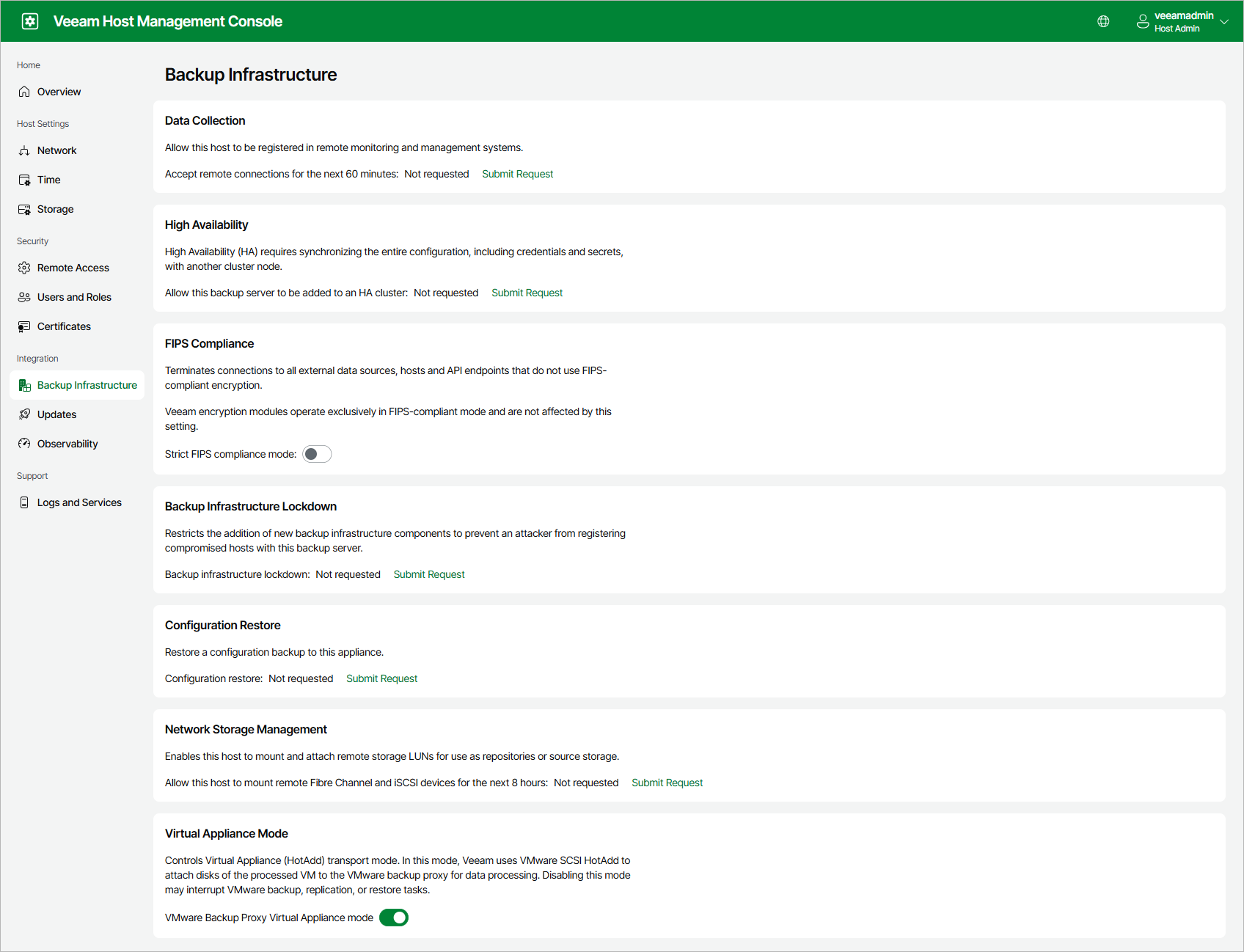
Users with Host Administrator permissions can perform the following operations within the backup infrastructure settings:
- Enable remote data collection.
- Allow a backup server to be the part of the High Availability cluster. For more information, see Enabling High Availability.
- Enable and disable FIPS-compliant operation mode.
- Enable and disable backup infrastructure lockdown.
- Restore configuration database. For more information, see Restoring Configuration Database using Veeam Host Management.
- Enable network storage management to mount remote Fibre Channel and iSCSI devices.
- Enable and disable Virtual Appliance (HotAdd) transport mode.
- Enable the Application Backup Repository mode on a Veeam Infrastructure Appliance with the Hardened Repository role.
- Configure pairing with the backup server for backup infrastructure components deployed from Veeam Infrastructure Appliance. For more information, see Configuring Veeam Infrastructure Appliance.
Enabling Remote Data Collection
To collect data remotely, other Veeam monitoring and data management solutions including Veeam ONE, Veeam Recovery Orchestrator and Veeam Service Provider Console must install their agents on Veeam appliances. By default, this operation is prohibited. To allow remote data collection, perform the following steps:
- Log in to the Veeam Host Management web UI as a Host Administrator.
- In the management pane, click Backup Infrastructure.
- In the Data Collection section, click Submit Request:
- If you did not configure the Security Officer account during the Veeam appliance installation, remote connections for Veeam Agents will be allowed immediately for 60 minutes.
- If you configured the Security Officer account, remote connections for Veeam Agents will be allowed for 60 minutes after the Security Officer approves the request.
If required, you can revoke permission before expiration. To do this, click Revoke.
Managing FIPS Compliance
You can enable the FIPS-compliant mode on the appliance to terminate connections to all external data sources, hosts and API endpoints that do not use FIPS-compliant encryption. Veeam encryption modules always operate in FIPS-compliant mode and are not affected by this setting.
To enable or disable FIPS-compliant mode, perform the following steps:
- Log in to the Veeam Host Management web UI as a Host Administrator.
- In the management pane, click Backup Infrastructure.
- In the FIPS Compliance section, set the Strict FIPS compliance mode toggle to the required position.
- In the confirmation dialog, click Proceed:
- If you did not configure the Security Officer account during the Veeam appliance installation, the change will be applied immediately.
- If you configured the Security Officer account, the change will be applied after the Security Officer approves the request.
|
Note |
|
Before enabling the FIPS-compliant mode, consider the following:
|
Managing Backup Infrastructure Lockdown
After you configure your backup infrastructure, you can enable infrastructure lockdown to restrict adding new Microsoft Windows and Linux managed servers to the Veeam Backup & Replication console. This reduces the risk of adding compromised servers to your backup infrastructure.
|
Note |
|
If you want to use remote data collection, you must install the necessary Veeam agents before you enable infrastructure lockdown. |
To enable infrastructure lockdown, perform the following steps:
- Log in to the Veeam Host Management web UI as a Host Administrator.
- In the management pane, click Backup Infrastructure.
- In the Backup Infrastructure Lockdown section, click Submit Request. Lockdown will be enabled immediately.
To disable lockdown, click Revoke. If you configured the Security Officer account, lockdown will be disabled after the Security Officer approves the request.
Enabling Network Storage Management
You can enable network storage management to allow the Veeam appliance to mount and attach remote Fibre Channel and iSCSI LUNs. You can then use these LUNs as backup repositories or source storage. For more information on attaching storage, see Managing Storage.
To enable network storage management, perform the following steps:
- Log in to the Veeam Host Management web UI as a Host Administrator.
- In the management pane, click Backup Infrastructure.
- In the Network Storage Management section, click Submit Request:
- If you did not configure the Security Officer account during the Veeam appliance installation, the appliance will be allowed to mount remote devices immediately for 8 hours.
- If you configured the Security Officer account, the appliance will be allowed to mount remote devices for 8 hours after the Security Officer approves the request.
If required, you can revoke permission before expiration. To do this, click Revoke.
Managing Virtual Appliance Mode
The Virtual Appliance mode controls the VMware Virtual Appliance (HotAdd) transport mode. In this mode, Veeam Backup & Replication uses VMware SCSI HotAdd to attach disks of a processed VM to the VMware backup proxy for data processing.
|
Note |
|
Consider the following:
|
To enable or disable the Virtual Appliance mode, perform the following steps:
- Log in to the Veeam Host Management web UI as a Host Administrator.
- In the management pane, click Backup Infrastructure.
- In the Virtual Appliance Mode section, set the VMware Backup Proxy Virtual Appliance mode toggle to the required position.
Enabling Application Backup Repository Mode
On a Veeam Hardened Repository, you can allow the appliance to function as a hardened repository and an application backup repository. After you enable the Application Backup Repository mode, you can select the Application Backup repository type when you add storage. For more information, see Managing Storage and Application Backup Repositories.
When you enable the Application Backup Repository mode, the appliance enables the NFS service, opens the required ports in the firewall and installs the application backup repository package. It also allows the appliance to be joined to a domain.
|
Important |
|
Combining a hardened repository with an application backup repository increases the attack surface on its immutability compared to using a standalone Veeam Hardened Repository. |
To enable the Application Backup Repository mode, perform the following steps:
- Log in to the Veeam Host Management web UI as a Host Administrator.
- In the management pane, click Backup Infrastructure.
- In the Application Backup Repository section, click Submit Request:
- If you did not configure the Security Officer account during the Veeam appliance installation, the Application Backup Repository mode will be enabled immediately.
- If you configured the Security Officer account, the Application Backup Repository mode will be enabled after the Security Officer approves the request.
To disable the Application Backup Repository mode, click Revoke.